
If you created your FPVSIM account with Google, you can add a password for apps that only offer email and password login, including the FPVSIM timer app. Your account, licenses, and Google sign-in stay the same.
Already signed in with Google? Go straight to your Account page and follow step 2. You do not need to create another FPVSIM account.
This creates an FPVSIM password. It does not change your Google password.
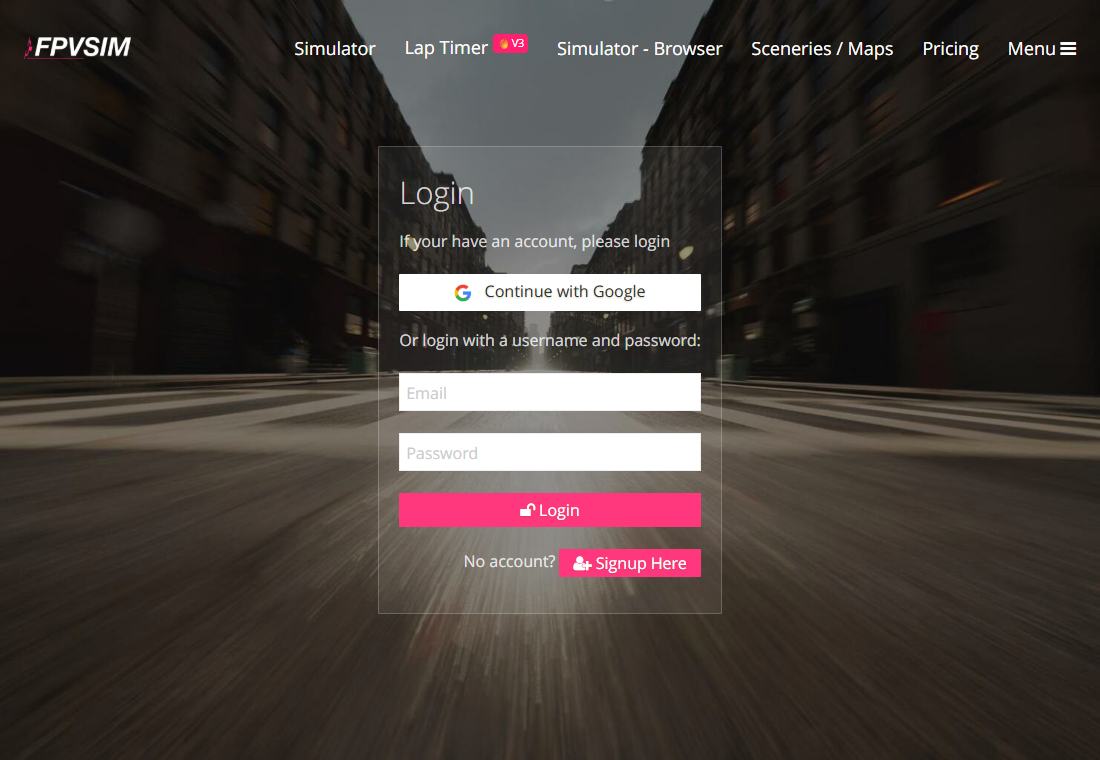
Open the FPVSIM login page in your browser and choose Continue with Google. Select the Google account you already use for FPVSIM and finish the Google sign-in prompts.
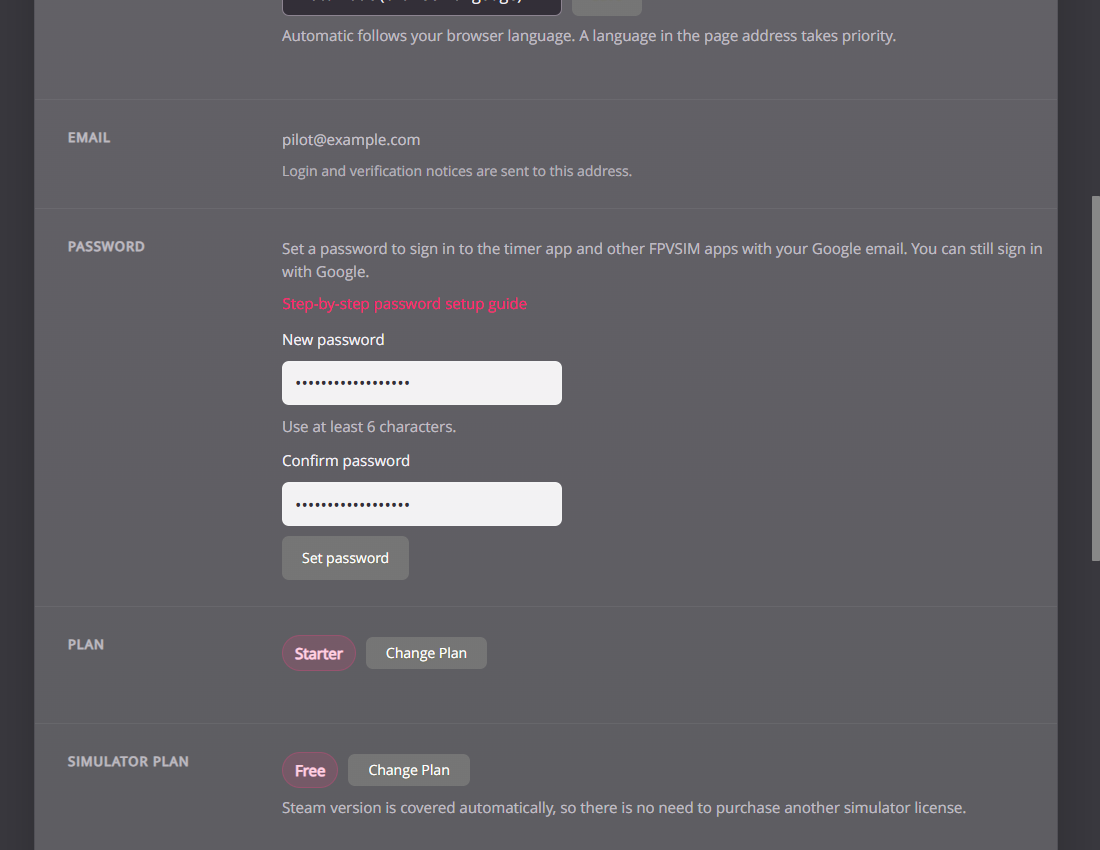
Open fpvsim.com/account in the same browser. Check that the Email row shows the Google email you want to use in the timer app. The Password section is directly below it.
If you see Change password instead of Set password, this account already has a password. Use that password, or follow the recovery instructions below.
In New password, enter a password for FPVSIM with at least 6 characters. Choose a longer, unique password and save it in your password manager. Enter the exact same password in Confirm password, then select Set password.
You do not need to enter a current password when adding your first password to a Google account.
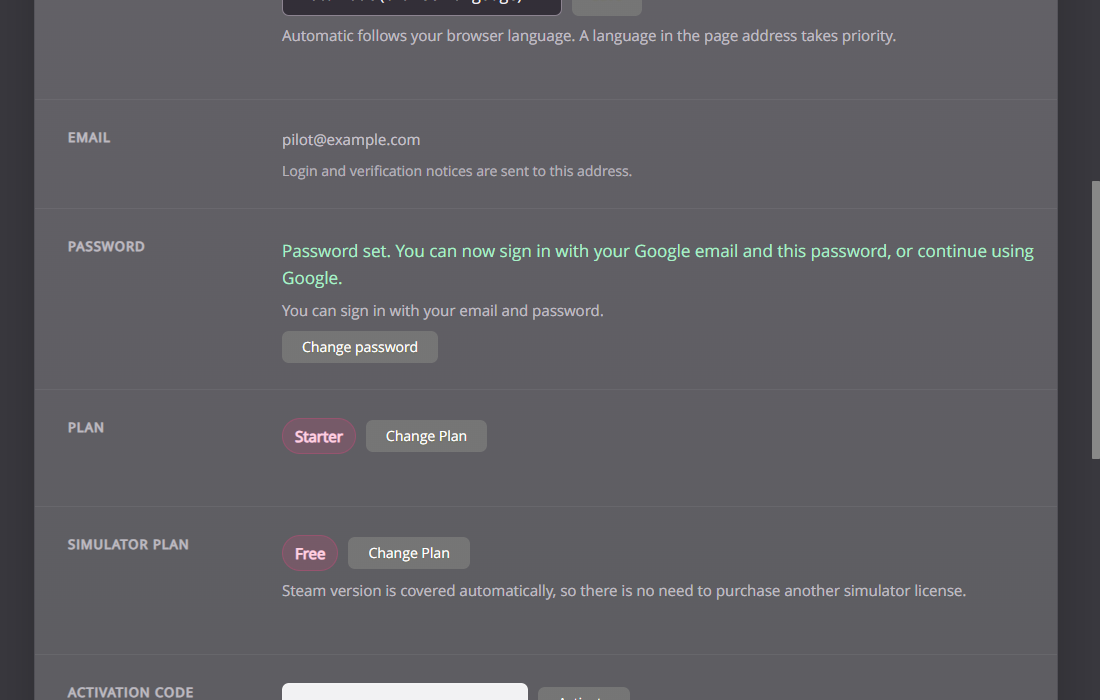
After saving, you return to Account. Look for the Password set confirmation. The setup fields are replaced by a Change password button.
You can now use either Google sign-in or your email and the new FPVSIM password. Both open the same account and licenses.
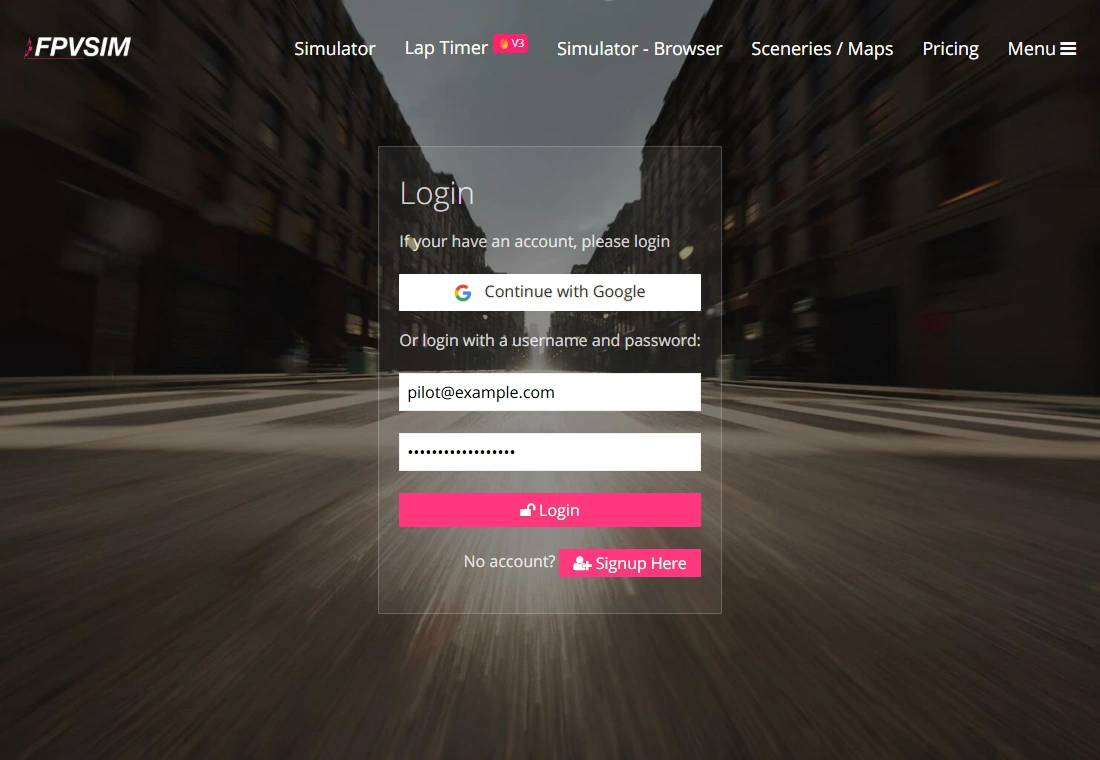
Return to the FPVSIM timer app and open its login screen. Enter the same Google email shown on your Account page and the FPVSIM password you just created, then log in.
You can also check these credentials on the FPVSIM website login page using its email and password form. Enter your new FPVSIM password here, not your Google password.
Enter the same password in both fields, using at least 6 characters, and submit again. A validation error does not save a new password.
This account already has a password. To change it, select Change password and enter the current password plus the new password twice. Signing in with Google does not remove the current-password requirement.
Sign out of the website, then open password reset. Enter your Google email and follow the reset link sent to your inbox. If you open password reset while signed in, the site takes you to Change password instead.
Reload Account while signed in and enter the passwords again. If your session has expired, sign in with Google first.
Check the email on Account, use the new FPVSIM password, and try the same credentials on the website. If website login succeeds but timer login fails, check the timer device's internet connection and try again.
Contact FPVSIM support with your login email so we can help resolve the duplicate accounts. Do not send your password.
