
You can fly the FPVSIM browser simulator with a keyboard. This X-Class flight around Azores pairs the simulator view with a synchronized keyboard camera, so you can follow the inputs during takeoff, throttle adjustments and turns.
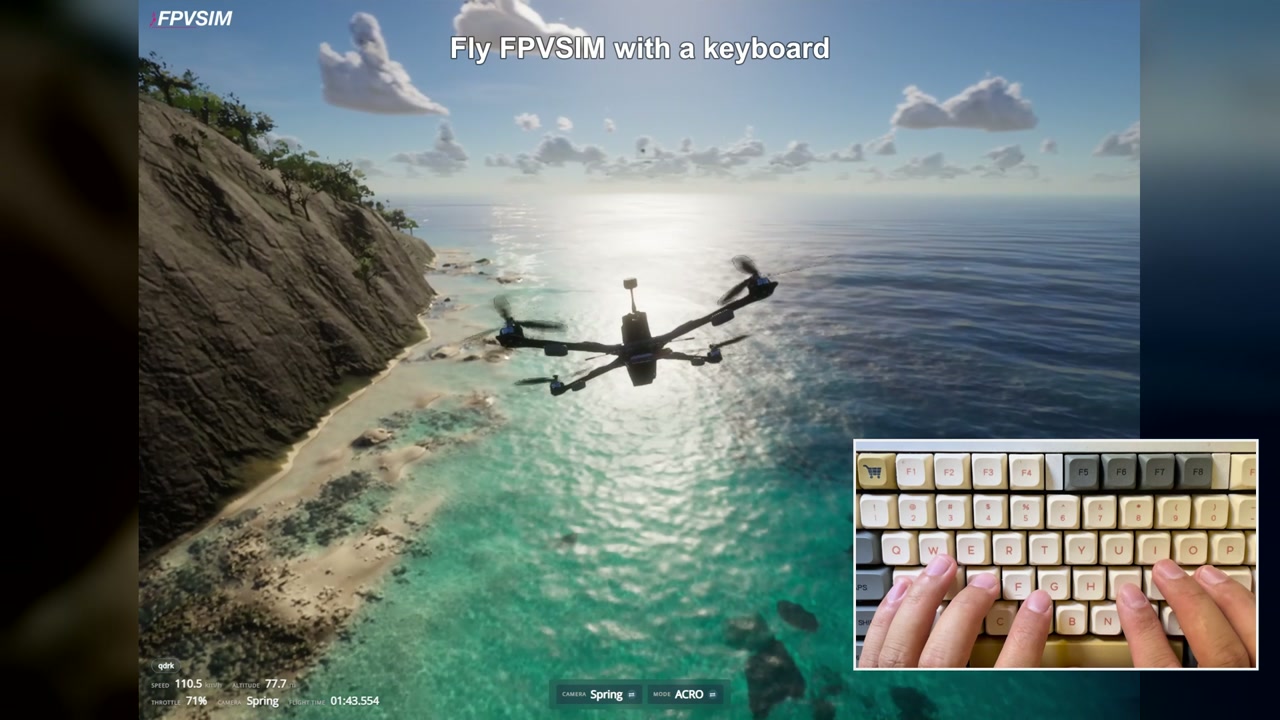
The video's cover combines the simulator recording and keyboard camera. The visible simulator controls show Camera Spring and Mode ACRO.
Watch the full keyboard flight on YouTube. The video lasts 4 minutes 2.5 seconds, including a 12-second end card. Retained flight footage plays at normal speed.
The eight keyboard flight controls
The demonstration uses these bindings in the browser simulator:
- W / S: increase / decrease throttle.
- A / D: yaw left / right.
- I / K: pitch forward / backward.
- J / L: roll left / right.
Yaw turns the aircraft's heading; roll banks it sideways. They are separate inputs. Watch the keyboard inset during the turning section to see how the pilot combines them.
Follow the flight
These chapter times refer to the full video linked above:
- 0:00 — Keyboard controls: review the eight keys before takeoff.
- 0:20 — Takeoff: watch the throttle input as the drone leaves the ground.
- 1:00 — Altitude and throttle: compare the throttle adjustments with the aircraft's movement.
- 1:40 — Flying along the coast: use the coastline as a visual reference.
- 2:23 — Coordinated turns: watch yaw and roll together. The pilot describes this as a skill that takes practice.
- 2:50 — Flying lower and 3:14 — Exploring the cove: the demonstration continues closer to the scenery and includes a near miss.
Treat the lower flight as a demonstration, not a target for your first attempt. Start with space around the aircraft and learn how each pair of keys affects it before combining inputs.
Try the browser simulator
Open FPVSIM in a desktop browser and complete any sign-in or access prompts. Current plans and access options are listed separately. To explore the same scenery, open Azores island and choose X-Class 900mm in the drone chooser.
Camera choice and flight mode control different things. The cover shows Spring and ACRO; it does not show LOS or LEVEL. If you want to understand the camera choices and self-leveling controls, read the LOS camera and LEVEL/ACRO guide. That guide also explains the reload step after a camera change. Azores requires a WebGPU-capable browser and hardware acceleration; the first shader compilation can take a few minutes.
These are browser flight bindings. The separate desktop simulator manual describes its own shortcuts, so do not substitute those respawn keys for this flight's roll controls.
Recording and credits
FPVSIM recorded the simulator and keyboard footage on October 4, 2026. The edit synchronizes the two recordings, adds the keyboard inset and titles, and trims setup, selected interruptions and the return-to-launch tail. It uses the original narration and simulator sound; no new music or synthetic voice was added. The end card uses FPVSIM's own Azores footage without the music from that separate published edit.
The X-Class model is adapted for FPVSIM from “Drone racing” by Kawasalto (3D Husky), licensed under CC BY-SA 4.0.
The Azores scene integrates Tidewater, with MIT-licensed code © 2026 DRG Software Solutions LLC. Third-party assets retain their own licenses; see the upstream credits.
Browse more simulator guides or return to the browser simulator.