
The Rocket Speed Drone is an original FPVSIM concept for high-speed simulated flight. Its streamlined body, four motor pods and serrated propellers look different from the conventional quads in the drone catalog. The browser preset is available as Rocket Speed Drone in drone settings.
Watch the 60-second launch video on YouTube, or watch the release on Bilibili. The edit combines FPV water and bridge runs with outside-camera views around Azores Island. The retained flight footage plays at normal speed.
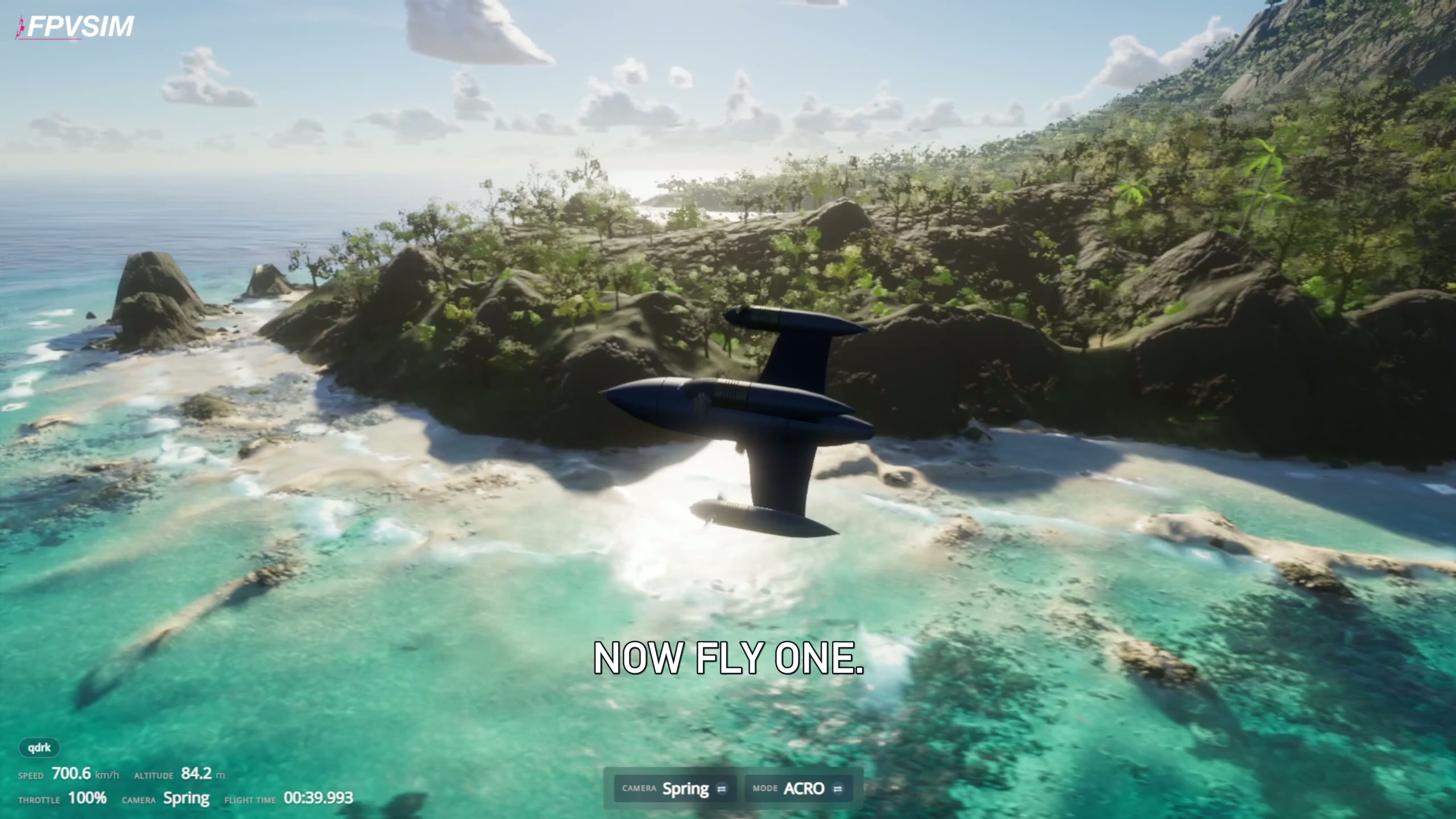
At 0:14 in the launch video: the Azores coast, Camera Spring and Mode ACRO. The FPVSIM logo and title are part of the video edit; this is a frame from recorded gameplay.
Choose the Rocket preset
- Open the browser simulator on your computer and complete any sign-in or access prompts. Current plans explain browser access.
- Open the drone settings and choose Rocket Speed Drone. The name identifies this preset; opening the simulator link alone does not select it for you.
- Pick a scenery with room to practice. The launch includes Azores Island; that scenery needs WebGPU support and hardware acceleration, and its first shader compilation can take a few minutes.
- Check the camera and flight mode before taking off. Keep the same setup while learning how the aircraft responds.
If you use a keyboard, review the eight browser flight controls first: W/S adjust throttle, A/D yaw, I/K pitch and J/L roll. That guide demonstrates the controls with an X-Class; the Rocket has different tuning, so treat its flight path as an example rather than a matching response.
What the speed and camera labels mean
The launch's roughly 700 km/h readings come from the simulator's speed display. They describe this simulated flight and its tuning; they are not a measured real-aircraft speed record or a guarantee for every flight setup.
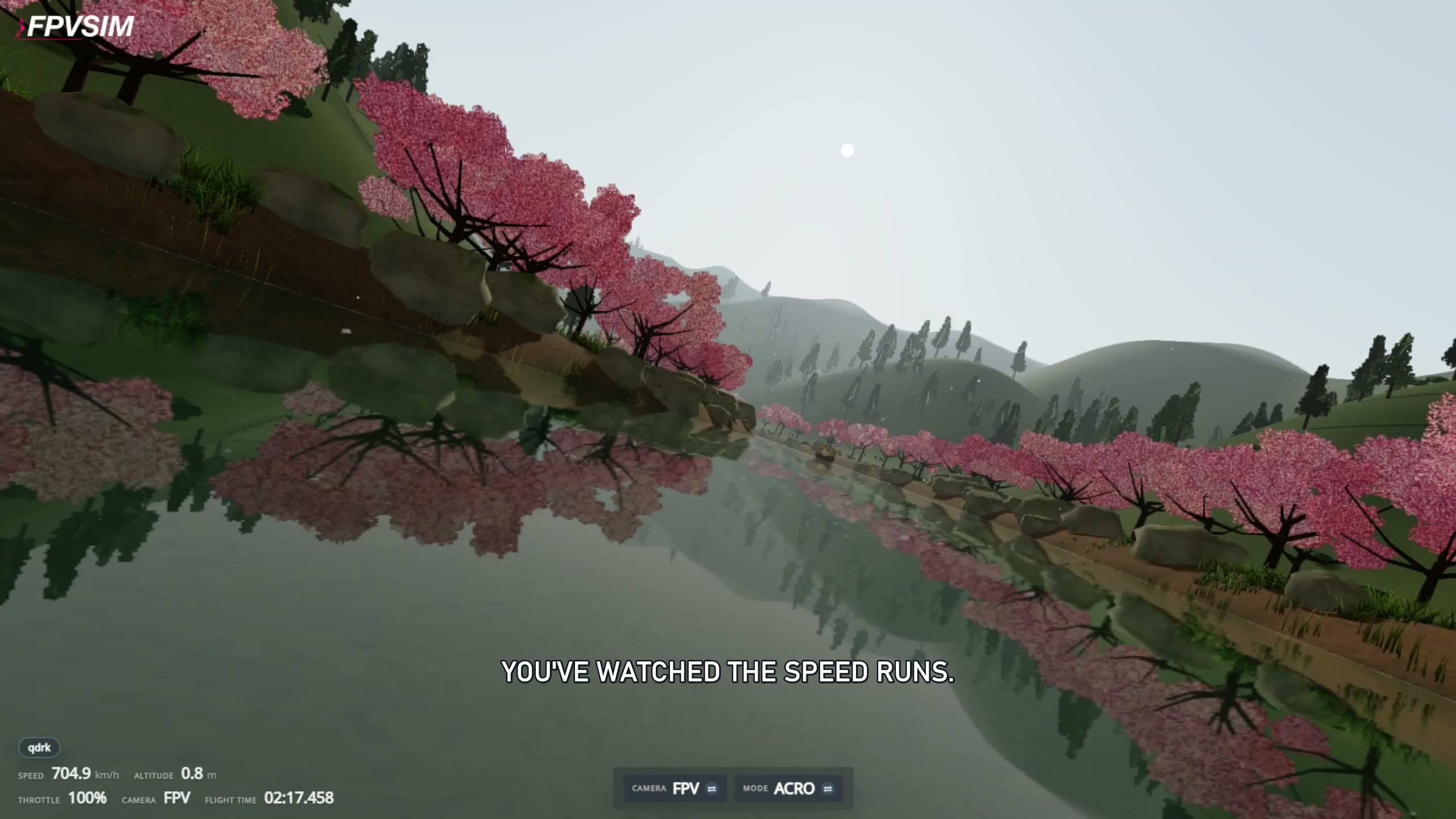
At 0:06: Camera FPV and Mode ACRO, with a simulated 704.9 km/h readout. The low waterline run is a demonstration, not a starting exercise.
Camera position and flight mode are separate settings. The coastal still uses Spring to show the aircraft from outside; the water run uses FPV. Both show ACRO. Neither still is a LOS-camera demonstration. The camera and LEVEL/ACRO guide explains those distinctions and the reload step after changing camera settings.
For a first session, leave space above and around the aircraft. Make a straight pass, reduce throttle, then practice a broad turn and a controlled exit. Repeat at a pace where you can follow the aircraft's heading before attempting the low bridge approaches in the video.
Recording and credits
FPVSIM recorded the source simulator footage on October 12, 2026 and published the launch on October 15. The 60-second edit contains nine normal-speed shots: 40 seconds around Azores and 20 seconds of the garden and bridge scenery. It adds titles, a logo and a music mix. The two images on this page are frames from the published landscape edit, not generated illustrations.
Music: “Neon” by Scott Buckley, released under CC BY 4.0. The music was excerpted, mixed with game audio and faded for the video.
The Rocket model is an original FPVSIM concept with simulated flight tuning. The Azores scene integrates Tidewater, with MIT-licensed code © 2026 DRG Software Solutions LLC. Third-party assets retain their own licenses; see the upstream credits.
Browse the drone presets, explore online sceneries, or start a browser flight.