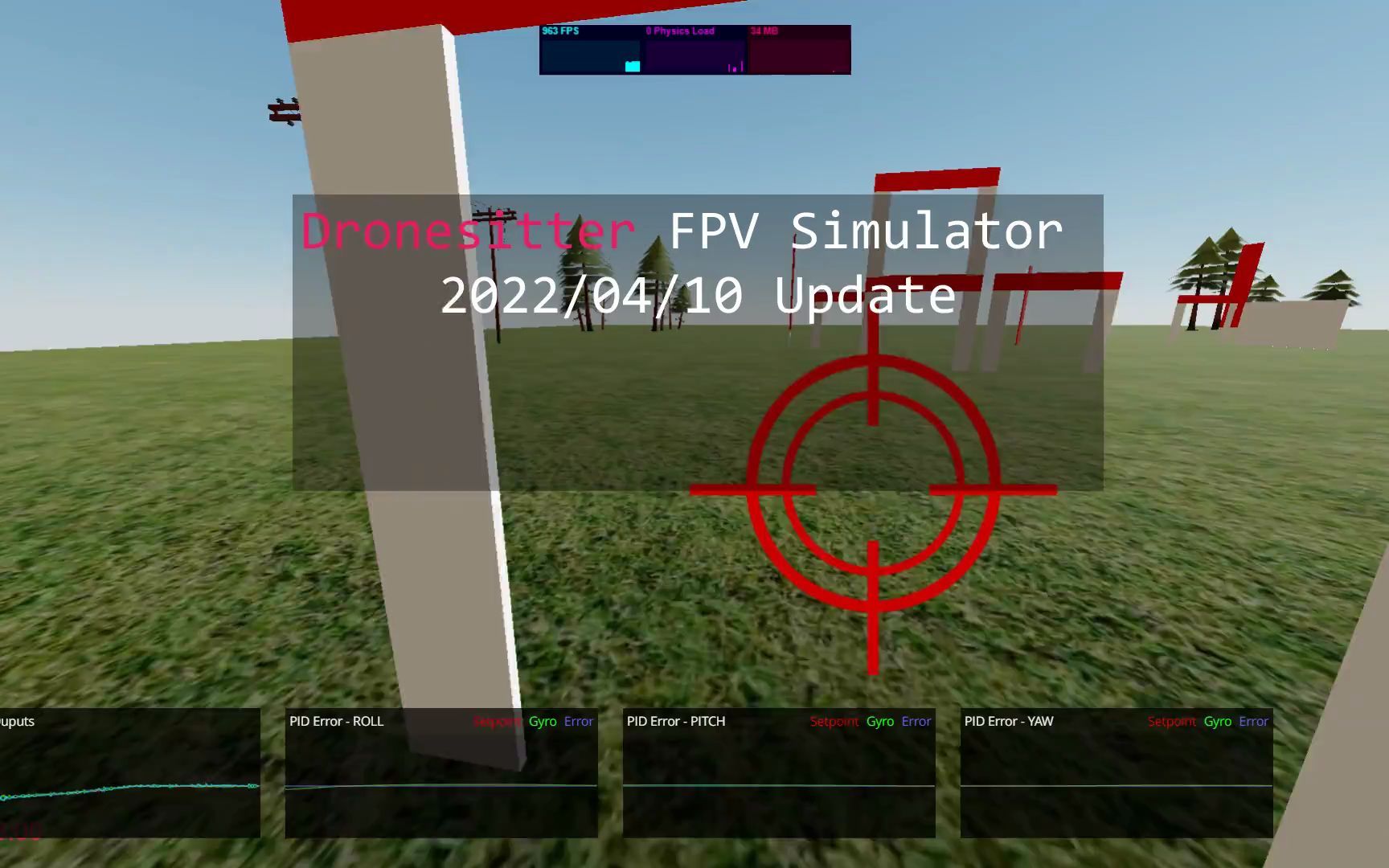
This tutorial explains how to create and configure a personal Google Maps Platform API key for FPVSIM's world map flight functionality: create a new standalone project in Google Cloud, complete the account requirements, enable the Maps Tiles API, generate and properly constrain the key, and finally save the key to FPVSIM's world map scene. This video was recorded in 2023. Google's interface, billing, quotas, and verification requirements may have changed, so you should refer to the latest policies displayed in your console.
What problem does this setting solve?
The world map scene of FPVSIM needs to obtain map tiles from Google Maps Platform. Instead of downloading a fixed map, the process in the video lets FPVSIM load real locations on demand using your own Google Cloud project and API key. Creating a separate project for this purpose can manage usage, permissions, budget reminders, and future undo operations separately from other cloud services.
Before starting, you need an account that can log in to the Google Cloud Console, a stable network connection, and the ability to complete the current account verification or billing settings. Video called the feature experimental at the time; even if the interface remains similar today, the free credits or daily requests at the time of recording should not be taken as a long-term commitment.
Create secure credentials in Google Cloud
After logging in to the console, first create a project dedicated to FPVSIM, and then complete the account settings according to the current page. Go to the API library, search for and enable the Maps Tiles API; then create a new API key on the Credentials page. Once the key is generated, it should be saved in a safe location immediately and avoid appearing in screenshots, chat logs, public code repositories, or public videos.
It is recommended to restrict the key to only calls to the Maps Tiles API, with the strictest application restrictions compatible with how FPVSIM is used. You should also check for quotas, budgets, or usage alerts. The demo keys shown in the video are not shared resources and the author explicitly states that they will be removed; any keys that have been made public should be revoked and regenerated.
Add the key to FPVSIM and load the map
Confirm that FPVSIM has been updated to a version that supports this feature and open the Google Earth/World Map scene at the end of the list in Quick Play. Paste the key generated in your project into the first input box and save it. The scene will then start requesting map tiles. If the perspective falls below the ground when entering for the first time, you can follow the video demonstration to re-enter or load the scene again.
Map details will gradually appear with network requests, and you need to wait when the connection is slow. The video ends with Hawaii as an example of how world locations can be loaded and used for virtual FPV exploration; this does not mean that all areas will have the same accuracy, and display will still depend on map data, network speed, API status, and current quotas.
Safety, Cost and Troubleshooting
If the world map is blank or only partially loaded, confirm that the Maps Tiles API is enabled, the key belongs to the correct project, the restrictions match the request, the account and billing status are valid, the quota has not been exhausted, and check whether the network can continue to download tiles. Don't cancel all key restrictions just because the screen is temporarily blank; find out the specific reason for the failure first.
If the key has been published, it should be revoked immediately in the Google Cloud Console rather than just deleting the text on the public page. Create alternative keys, re-restrict permissions, and check for unusual project usage. The request amount and "no fees will be deducted" and other descriptions mentioned in the recording only reflect the demonstration environment at that time. You must re-read the current prices and terms before actual use.
Operation steps
- Log in and create an independent project
Open the Google Cloud link in the video description, log in to your account, and create a standalone project for the FPVSIM map feature.
- Complete current account settings
Complete your identity, account or billing setup as shown on the console today, and check current prices and terms first.
- Generate and save personal API key
Create your own key on the Credentials page, keep it safe, and prepare to add API and application restrictions. Do not copy the demo key shown in the video.
- Enable Maps Tiles API
Search the API library for the Maps Tiles API and confirm that it is enabled for the project you just created.
- Check limits and quotas
Limit keys to necessary APIs, view current quotas, and configure available budgets or usage reminders.
- Select world map in FPVSIM
After updating FPVSIM, enter Quick Play and open the Google Earth/world map scene.
- Paste the key and wait for the tiles to load
Paste your own key into the scene input box and save it; if the initial perspective is below the ground, re-enter or load the scene again.
FAQ
Can I use the API key directly in the video screen?
No. Those are temporary demo credentials and the author states they will be deleted after publishing. Create, restrict, and manage personal keys in your Google Cloud project.
Is the Maps Tiles API necessarily free?
This conclusion cannot be made based on the 2023 video. Prices, free credits, quotas, and billing requirements may change, so you should check the current policies in your console before enabling.
Why is the map still blank after saving the key?
Please check that the API is enabled, the key belongs to the correct project, limits match the request, account or billing status, remaining quota, and network connectivity. Map tiles may also take a while to load gradually.
What to do if your API key is accidentally exposed?
Immediately revoke exposed keys, create and restrict replacement keys, and check project usage for unexpected requests. Merely deleting the key text from the web page will not invalidate the old key.
Should I create a separate Google Cloud project for FPVSIM?
This is recommended. Standalone projects make it easier to limit APIs, monitor usage, set reminders, and revoke credentials without affecting other services.
Full timeline transcript
Transcripts are arranged according to video time, making it easy to quickly locate the explanation content. Transcript language: Simplified Chinese.
Hello everyone, this is QuoteRank. In this video, I'm going to quickly explain how to get a free Google Maps API key and use it to fly FPV anywhere in the world. Since this API is currently in the experimental phase, you still need to do these steps now. In the future, when it is fully released, we may no longer need to do this. But if you're like me and want to try it out ahead of time, here's how to do it, and it's actually pretty simple. First we
Go to this link and I'm going to put this link in this description column below. Make sure you're logged in with a Google account because I don't have a Google account right now so I need some basic settings. This is where you just need to agree. Then we create our first project name. It doesn't matter. Click create. Then it will take some time to create the project. Okay. Now we click to complete the account setup.
Google will ask you for your credit card information, but it will only use the credit card information to verify your identity and will not actually charge you money, so don’t worry too much. Select your personal account here and fill in your credit card information. Here I will jump directly to the credit card completion page.
After completion, this place will need to answer some questions, because we just use its API key to answer questions, it doesn't really matter. Here I just choose some answers and click submit. Here it will give you a key to this API. We copy it and put it somewhere. Then you can choose to restrict your API in this place. We only use this place ourselves, so it doesn’t matter.
Next, we search for this Tile API in this search box and select the Tile API of this map in this result. MapTiles API ensures that this API has been opened. Click the Enabled button. Now that the API is opened, you can copy the API key we just copied to this FPVSIM and it will be used. If you did not copy it just now, you can click this Credential.
Then click on it to display the secret, and then you can copy it here. Please don't use my API key, because I will delete this API after this video is released, and the API can be deleted. Then Google also limits how much of this you can use every day and how many requests you can send to this API. You can take a look, there are 250,000 requests every day.
According to my experience, this 250,000 is enough for you to spend one to two hours. As long as you are not constantly loading new maps for one to two hours, it is no problem, so there is no need to worry too much. OK. Now let’s take out this key and store it in FPVSIM. Make sure you have updated to the latest version. Click on the last map in quickplay and Google Earth Map. After clicking in, you can see this new interface.
In the first input box, you can copy the key we just copied, then click Save, and then you can see that it is now added to the map. We seem to have dropped below the ground now. You can click again and it will rise to the ground. Now we can visit Hawaii in this virtual world.