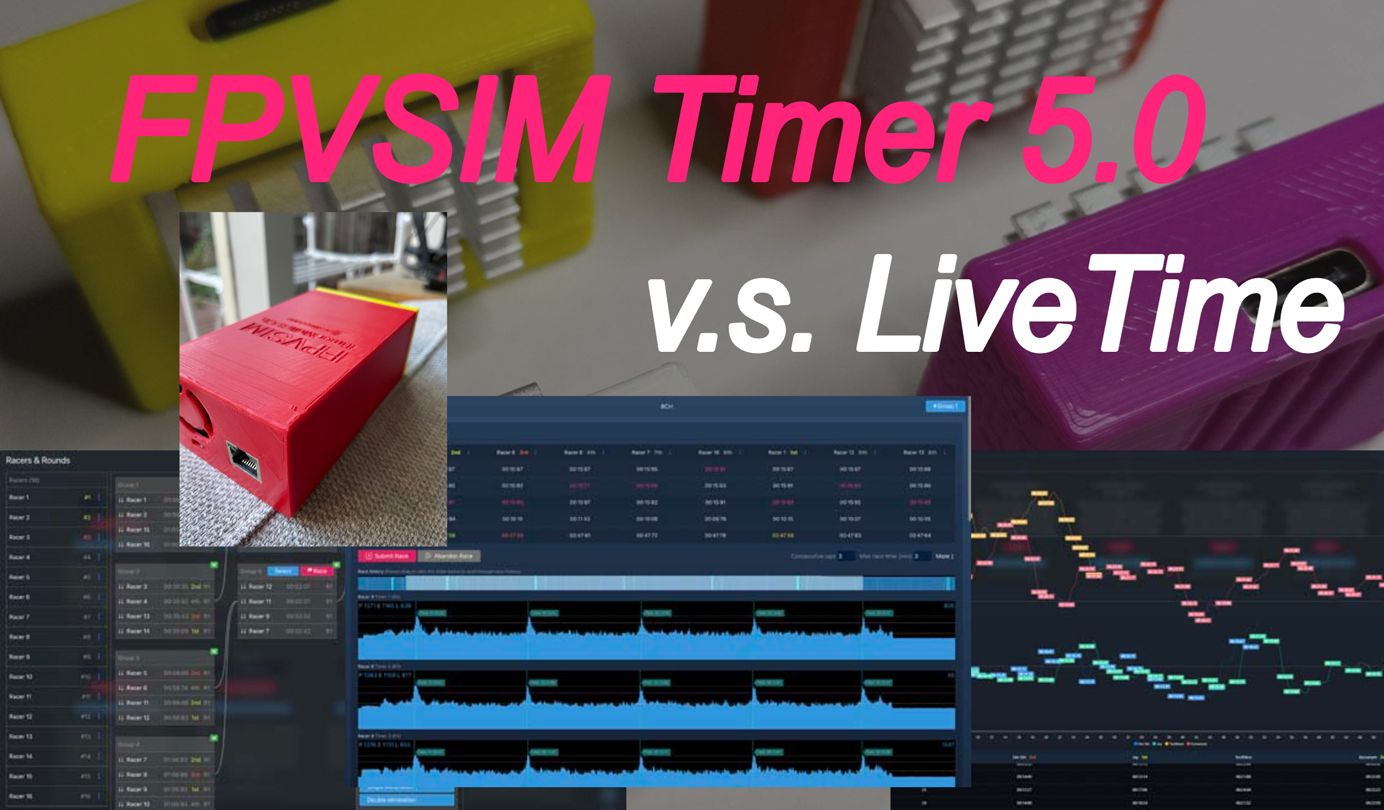
This tutorial uses the event builder of FPVSIM Timer 5.0 to string together the complete process: generate qualifying groups, adjust players and channels, submit competition results, select qualifying candidates according to public rules, and then establish single or double elimination matches. The focus is on protecting the original workspace, unlocking subsequent categories based on upstream results, and reviewing the entire results chain before announcing the rankings.
First clarify the rules and basic data of the competition
Before establishing a group, create or import players and assign channels to determine the number of people in each group, race type, qualifying ranking rules, promotion quotas, and how to handle Holeshot, incomplete races, ties, and corrected lap times. These rules should be made public before the game starts, rather than changed on the fly after seeing the results.
The build operation in the video will replace the current grouping, so you must save or export the workspace first and run the entire process with a small number of testers. The interface belongs to the Timer 5 beta version. The current menu name may be different, but the order of "backup first, then generate, and submit group by group" still applies.
Generate and complete qualifier
Select players or source groups, set the qualifying type, and then generate each group. After generation, check the number of people, channels and conflicts group by group; you can drag players, add or delete entries and correct channels according to the video demonstration, but do not skip the final manual check.
Review the timing test after each game, and only correct the invalid circle when there is clear timing evidence; submit the results after completing the editing, and the global qualification ranking will be updated. The three-lap streak example in the video does not count the Holeshot as one of the three laps, but other race types will have to check their actual rules.
Create knockout tournaments from qualifying rankings
Participants will be selected based on the pre-announced promotion rules and completed qualification rankings, and those who have not advanced will be removed before the elimination match is generated. Single elimination is usually eliminated after one loss; double elimination includes a winner's path and a loser's path, allowing first-time losers to get a second chance, so more groups and time are needed.
The builder seeds the faster qualifiers against the slower ones. Future rounds are just placeholders at first, and the actual players will only be filled in after the upstream group is completed and submitted; when subsequent groups cannot be started, you should first check whether all previous results have been submitted.
Protect the results chain and review the final ranking
Run the available groups in strict order of dependency, and check whether the promoted candidates enter the correct downstream position after each group is submitted. Once upstream results are propagated to subsequent rounds, they should not be altered; if there is evidence that a correction is needed, all affected downstream matches must be re-examined.
Before announcing the final podium, check the winner, loser path, eliminated players and rankings against the competition history. Colors are only an aid in reading the matchup structure and are not a substitute for review of submitted timing records.
Operation steps
- Save the workspace and define event rules
Back up existing brackets, determine match type, promotion spots, holeshot, ties and revised rules.
- Generate qualifying group
Create groups after selecting players and competition types, and then manually check each player and channel.
- Run, review and submit qualifying rounds on a match-by-match basis
Only correct invalid data based on clear timing evidence, and confirm the overall ranking update after submission.
- Select candidates according to public rules
Use final qualifying rankings to determine who advances to the knockout rounds, and remove those who didn't qualify before building the table.
- Choose single elimination or double elimination
Generate a matchup based on the rules of one loss and the loser's path, and reserve the corresponding time.
- Complete groups in dependency order
Submit all pre-groups first, confirm that the promoted ones are correctly propagated, and then run the subsequent rounds of unlocking.
- Review of final matchup and podium
Check the winners, eliminations and final rankings against the competition history before announcing.
FAQ
What is the core difference between single elimination and double elimination?
In the video process, single elimination is eliminated after one loss; double elimination sends the first loser to the loser path, increasing the second chance, and also increasing the number of competition groups and time consumption.
Why can’t subsequent groups start?
The players in it may still be placeholders. All pre-placement groups should be submitted and confirmed that advancers have been correctly propagated to that round.
Does the three-lap streak include the Holeshot?
The race type shown in the video does not count the Holeshot as one of the three laps; other events must be subject to the actual race type selected and the rules announced before the race.
Can wrong lap times be corrected after the race?
Recorded versions allow review and editing before submission. Corrections must have clear timing evidence and leave records; if the upstream results have affected subsequent matches, all downstream cruises must be rechecked.
How to avoid overwriting existing event settings?
Save or export the workspace before generating a qualifier or matchup, as the builder in the video replaces the current bracket.
Full timeline transcript
Transcripts are arranged according to video time, making it easy to quickly locate the explanation content. Transcript language: English.
What's up my drone friends, how's everything going? This is Jay from FPVSIM. Today, let's take a look at how to run races easily with FPVSIM timer 5.0. Without further ado, let's get started. 5.0 is currently in beta stage and will be fully released very soon. You can download it from GitHub and try it for free. Do give it a try.
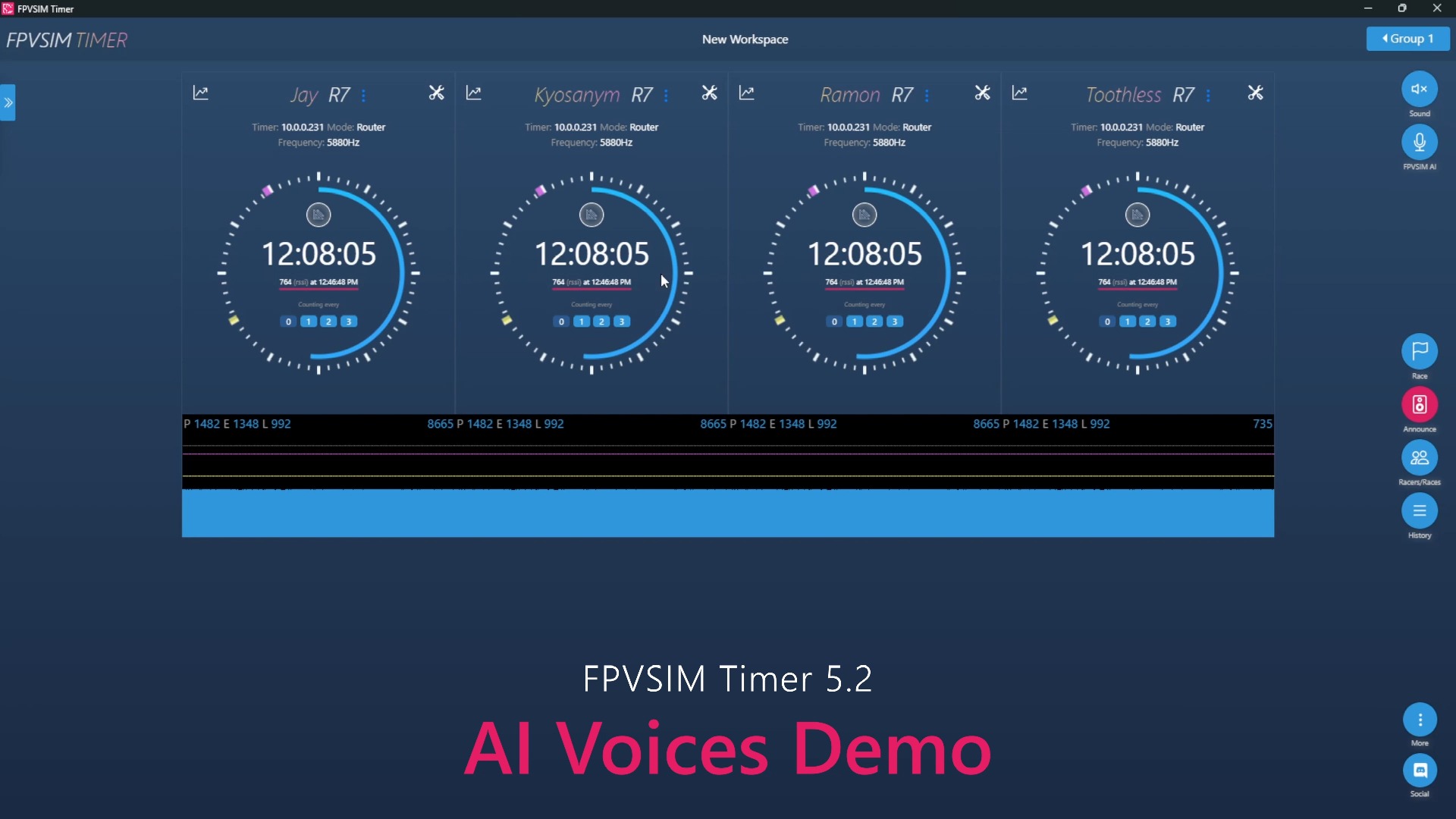
As you can see here, I already got FPVSIM timer 5.0 installed and opened and I got four timers here. The menus didn't get changed much, but if you go to Races, you can see the new view here. Here I already got the double illumination built, but usually a race starts from qualifiers. So let's rebuild the race with qualifiers. So this little window here is what we call a race builder. You can specify how many racers per group.
And then specify what kind of rates you want to build. Usually a race starts with qualifier. So if you click on qualifier, this will tell you you're going to create four groups and override the current groups, proceed, click OK. Then here we got four qualifier groups built and you can run each groups here.
You can also drag the research around. Once you drag the research to a different place, the channel will be different. Here, since I'm just connecting to the same timer or the channels are the same. But in reality, this will be four different channels. So if you want to drag David to what Anthony's channel is, just drag it here. Of course, all other research will need to be adjusted as well. On the left.
You can remove racers from group. For example, if Matthew doesn't want to go into the group one, you can remove it here. And then you can drag different racers into this group as well. For example, here you can drag, let's see, Joseph into the group. And then on the right side, this will also be reflected. OK, let's say that we got all the racers sorted out and we start to race. Just click on race here.
You can also pick group to race by using this selector here. For example, if you want to race group 1, right, just click on race. As always, this will already be different channels, but just for demo purpose, I'm using one timer to simulate 4 racers. Let's start the race. The race will be consecutive 3 laps, and maximum race time is 2 minutes. Now race is started, let's simulate some lap time. Clicking on this text,
So, horse shot will not get counted for this consecutive three laps. This is your first time passing the timing gate. And now, first lap, let's say, as you can see, the first, second, and third will also be reflected live. So, you can see which pilot is taking the lead. Cool. Now, let's say all the racers have already passed the three laps and are already landed. We can finish the race early. Just click on finish race.
As always, once the race is finished, you can edit the lap time if some time is invalid. I've already talked about how to do that in previous videos, so I'll not repeat it here. Here, let's just submit the race. Now the race is finished, you can see all the racers score here too, as a history. So, Joseph takes the lead, 37-14 consecutive three laps, and then Marks second, Anthony third.
When you are in qualifier mode, you can also see this little icon here. When you click on it, it will open a panel. This panel actually shows you the global ranking of qualifiers. For example, right now we only have one group, right? We know that Joseph took the lead, Mark II, Anthony III. Now if we run another group, let's say group 2. By the way, for qualifier, you can also pick different groups to run.
The current group will be highlighted. So if you just run it from here, that will be this blue group that will race. So you can either click on the race here or use this flag to start the race. It's the same. Start the race. Similarly, some lap times. By the way, this time I generated it randomly. So the actual duration is not correct. OK. Now everybody already has consecutive three laps. Now let's finish the race.
Looks like Robert took the lead this time, first, and second Michael, third is Richard. Let's submit the race. From here you can see that we have Robert, Michael, and Richard as well, as the first, second, and third. Now if you look at this global ranker, you can see Robert actually passed to Joseph, because the total time is 36 seconds. So in here you can always see what's the
This ranking will also be reflected when you go to the wristbuilder, as you can see here Robert, Joseph, Michael, etc. This is because we can use this ranking here to build a tournament. Let's say that we've already finished all the qualifiers and everybody, the 16 researches will be our qualified. If you have more than 16, let's say like 20 researches, 4 will not be qualified, you can just remove them from here.
But let's say, in this case, all 16 are qualified. Then, you can build a tournament. We have four timers, right? Let's say we still want four racers per group. What you can do here is to either use single elimination or double elimination. For folks that don't know what is single elimination, single elimination is basically, you only have one chance. If you lose, you'll be out. And double elimination is a little more forgiving.
In the sense that if you lose once, you might still have a chance to fight it back. Let's take a look at how it works. Let's say here today we want to run single elimination, right? Let's just click on this. They'll tell you they want to build a single elimination of group size 4, and this will override your current group. We already finished our qualifier. Let's just click OK. So instantly we will have the single qualifier build. You can see that we have four groups here.
Since we have 16 racers and once you enter the single illumination or double illumination brackets, you won't be able to edit racers here because these 16 racers are all qualified. You won't be able to add new ones anymore. And usually how the grouping works is top pilot will be grouped with the slowest pilot and second fastest Joseph right will be grouped with Daniel so on and so on.
Michael will be grouped with Chris Duffer and Richard will be grouped with Thomas. And now how this works is these two groups, only the top two will go to the next stage. So as you can see, Group 5 here is the first of Group 1 and second of Group 1. The first of Group 2 and second of Group 2. Where did the third and fourth go? They are out, unfortunately.
If it's single illumination. Similarly for the other groups. So here for the groups that already have research in there, you can run the race. But for these, these are just placeholders. We don't know what racer will be racing here yet. It's shown as pending. And you cannot run this race yet. But let's run the race for group 1 first. As usual, start the race and simulate some lap times. Now we're in racquets. Pilots are ranked by their finish time.
So you can see that here it becomes total laps instead of consecutive laps. Let's submit another lap. And all the ranking here is reflected live as you can see. Let's do another lap so that everybody will be finishing. Now everybody is finished. Let's submit the race. Now the race is submitted. You can actually see the submitted lap times by using what we call group selector. You can see that group point has already finished.
And here are the rankings, Robert, Matthew, Joseph, and Daniel. Now let's do the group 2. Let's just finish early this time. And submit the race. Now that the race is submitted, right, you can see that the group 5 will be available. So the first and second of group 1, first and second of group 2 will go to group 5. And now you can race group 5.
Still, let's finish early, submit the race, just to show you how the race is progressing. Now we got group 5. Similarly, if you finish group 6, group 7 will also be available and you can run the final race. OK, this is how single illumination works. Let's take a look at double illumination. Let's say that we changed our mind, right? We don't want to run single illumination. We actually want to run double illumination. Here we just pick double illumination and the double illumination will be built.
Similar idea. You got four groups to start, right? Because we have 16 racers and four in each group. And the grouping is similar to single elimination as well. It's the fastest pilot with the slowest. But then what's different between double elimination and single elimination is double elimination. You have two chances, so you will race more. Definitely have more stick time for sure. That's why we also got a lot more stages here.
The first stage, and here it's actually out of screen. You can use your scroll bar to scroll to the right. And we can see here, one, two, three, four, five, six. They are in total six rounds. Okay, how does double illumination work? Let's say we are racing group one, right? The first of group one, second of group one will go to group five. And you can see group five is marked as green, which is what we call a winning group.
Similarly, the first of group 2 and second of group 2 will also go to the winning group. But if you are the third and fourth of group 1 and group 2, you are not out yet. You will go to follow this gray line, go to group 6. We mark this as a yellow L, which is loser's group. You can still race, but you will be in this loser's group.
3rd and 4th of group 2 will also come to this group, and you guys will race, and then the top 2 will go to the next group, and so on and so on, just following these lines here. So, similar to single elimination, let's start a race here. Okay, here as usual, let's simulate some lap times. Let's finish the race already, and submit the race.
Once the rates are submitted, as usual, you can see the scores in this view. Group 5, first seats, second seats will be populated. Similarly, the losers Daniel and Matthew will go to Group 6. Group 2 is the next one. Let's raise them. Let's simulate some lap times. Let's also finish the race early.
Now that Group 2 is also raced, you can see that Group 5 and Group 6 will be available because all the placeholders are populated with real research. And similarly, you can just raise them and then the next stage will be populated. Of course, for people in this group, if you lose, you still have a chance to go to the next group. But for pilots in this group, if you are third and fourth, you will be out. As you can see, there's only one red line coming out of this group.
The first and second of group 6 will proceed to the next round. Double elimination has a lot of groups, so here you can also use your scroll bar to scroll left and right to go through all the groups. Eventually, when you run to this group, that will be your final winners. First place, second place, third place podium. Basically, as simple as that, you can run a full race from qualifier to brackets.
Right from FPVSIM timer. Of course, you can always see your race histories from this view. And everything is now color coded, so you can see who is the first, who is the second, who is the third, and what are their total times as well. You can plot the trend, as always. Another feature I want to show you is this little drop down here. Now you can edit racer name right from here.
You will be able to switch to different channels now easily from this drop down as well.
Very easy. In 5.0 we also rearranged the menus a little bit. Now the live stream broadcasting feature is rearranged into these three dots. And instead we put our social links here. Now you can follow us on, for example, Discord, Facebook, YouTube, etc. Cool! That's all I have for today. Do you like it? Please let me know. This is Jay from FPVSIM. Thanks for watching and I'll see you next time.