Betaflight Blackbox is the flight data record of the flight controller: it saves information such as attitude, gyro, receiver target, PID and motor output, helping to review what the aircraft actually performed, instead of just relying on subjective feel. The first episode of this series explains how to enter the Blackbox page from Betaflight Configurator, enable Mass Storage Device mode, copy the log file, and open it with a browser analysis tool.
What questions can Blackbox answer?
After a radio command, did the aircraft follow correctly? Did PID overshoot? Did the motors saturate? When did vibration begin? These are hard to distinguish from pilot feel alone. Blackbox saves multiple flight signals over time, like a “work report,” letting you align abnormal movements with gyro, PID, motor, and receiver data.
It is useful for diagnosing oscillation, motor desync, control tracking, filtering, and conditions before and after an incident, but a log does not provide conclusions automatically. Before analyzing, know the firmware, aircraft, Blackbox sampling settings, and time of the event. Without context, colorful plots are easy to misinterpret.
Copy Blackbox files from the flight controller
Remove the propellers, connect the flight controller by USB, and open the Blackbox page in Betaflight Configurator. In the video, the author selects Activate Mass Storage Device mode so that the onboard flash memory or memory card appears in the operating system like a USB drive. Copy the desired log to the computer before analyzing it.
The exact button depends on the flight controller’s storage type, firmware, and Configurator version. Some boards use onboard flash, some use microSD, and some have no usable log storage. Do not repeatedly cycle power while waiting for the drive to appear. After copying, eject it safely through the operating system and retain a copy of the original logs.
Understand files and arming segments
The video explains that the recorded version generally creates a log file within a power cycle after the aircraft has been armed. Multiple arm/disarm cycles during the same power cycle may remain in one file as separate flight segments, so file count alone does not tell you how many flights occurred.
To locate an incident, use file timestamps, segment lengths, and OSD or video timing together, and avoid overwriting older logs. Different Betaflight versions, logging devices, and cyclic-recording settings may change file behavior. Follow the current Configurator and official Blackbox documentation.
Choose an analyzer and protect the original data
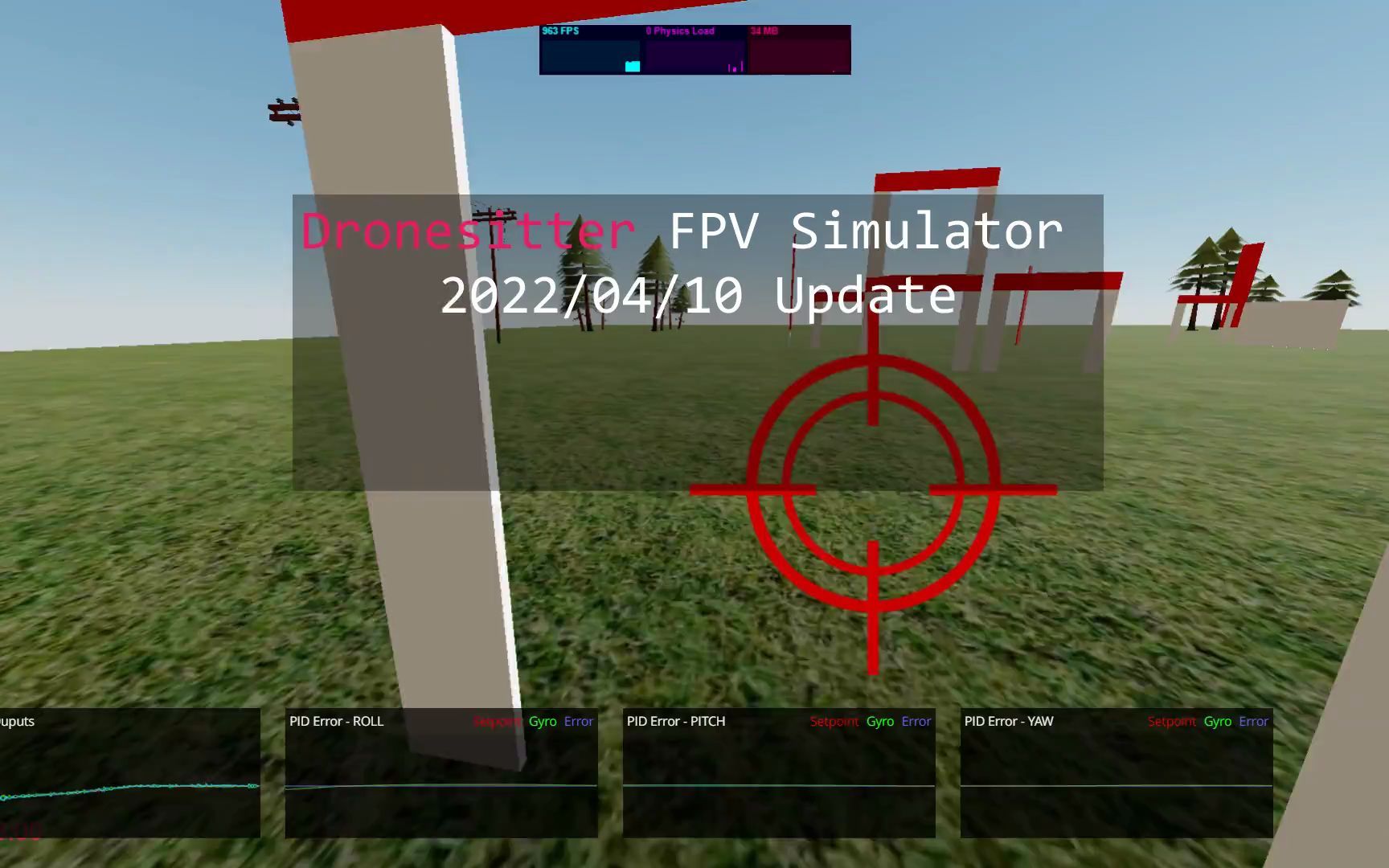
The video uses the Dronesitter web analyzer available at the time: open the site, select Try, and load the copied log. Other free Blackbox tools are also available. Whichever you choose, keep the original file, confirm that the tool supports the firmware format, and check whether the web tool uploads data and what its privacy notice says.
This episode covers only the purpose of logs and how to open them. Plot units, scaling, and relationships are covered later. When opening a log for the first time, check that the flight segments, timeline, and basic traces are complete. Do not immediately change PID based on a single trace.
Operation steps
- Identify the event you want to diagnose
Record the flight time, maneuver, firmware, and symptoms so you do not have to search blindly through a long log.
- Remove the propellers and connect Betaflight Configurator
Open the Blackbox page and confirm that the flight controller has readable flash or SD storage.
- Enable Mass Storage Device mode
Make the log storage appear as a system drive, then copy the desired files into a separate analysis directory.
- Locate the flight by power cycle and arming segment
Multiple arming cycles during one power cycle may be in the same file. Select the correct segment in the analyzer.
- Open a copy with a compatible analyzer
Keep the original logs and check format support and privacy information before loading them into a web or desktop tool.
FAQ
Can Blackbox tell me directly what PID values to use?
It cannot automatically provide a universal answer. It supplies evidence from gyro, PID, motors, and other signals, but interpretation still requires the aircraft, filtering, maneuvers, and multiple log segments.
Why is there no Mass Storage Device button or drive?
The flight controller may use a different storage type, lack onboard logging storage, or use a different workflow in the current firmware or Configurator. Check the hardware and official documentation first.
Does each flight always produce a separate log file?
Not necessarily. In the version shown, multiple arm/disarm cycles during one power cycle can be written as separate segments in the same file.
Will a web analyzer upload my logs?
This article makes no assumption. Before use, read the current tool’s privacy and processing information. Keep an original copy and do not upload logs containing sensitive information to an untrusted service.
Full timeline transcript
Transcripts are arranged according to video time, making it easy to quickly locate the explanation content. Transcript language: Simplified Chinese.
Hello everyone, I am QuadRank. Today we will look at Betaflight’s flight recorder, also called Blackbox. First, what is it, and why should you understand it? Commercial aircraft have a device called a black box. After a crash, one of the first things people look for is that device, because during flight it records a great deal of information, such as aircraft attitude and received signals. That information is collected in the black box.
We can then use tools to read the information and analyze what the aircraft was actually doing. It is like being a boss giving instructions to employees, right? You issued the orders, but how was the work carried out? Were the employees slacking off, or did they go too far? Would you not want a work report? Blackbox is the aircraft’s work report to us. To make an aircraft fly well, understanding Blackbox is essential.
Understanding Blackbox also helps diagnose all kinds of strange problems. For example, a common motor desync can be seen very easily in a log. When you first see Blackbox, you probably have as many questions as I did: what do all these colorful lines mean, how are they related, and what does this histogram represent? How do you read it? I plan to explain these points one by one over the next few videos.
I will try to keep each episode under five minutes so you can refer to it in spare moments. I will keep the explanations accessible, so if you are new to the hobby, feel free to watch. If you are experienced, unless you have read the Betaflight Blackbox analysis code line by line, I think you will still learn something new. How do you find a Blackbox file? Open Betaflight Configurator and find the Blackbox tab.
Then activate USB drive mode, also called mass storage mode. Once enabled, you can access Blackbox files just like files on a USB drive. You can see that I have many Blackbox files here. How are they generated? The rule is that powering on and arming creates a Blackbox file. If you arm and disarm several times during one power cycle—
—it still creates only one file, divided into several smaller segments. We will explain that in detail in a later video. Once you have found the Blackbox file, how do you read it? Several tools are available, and they are free. I will demonstrate with Dronesitter, which is particularly convenient. It needs no installation; you simply visit the website, and it can also be accessed on a phone.
Open a browser, enter dronesitter.com, click the large Try button, select the Blackbox file we just found, and confirm. In the next video, we will look at interpreting these colorful plots. Do not be intimidated: once you understand a few basic principles, it becomes very simple. That is all for this episode. See you in the next one.