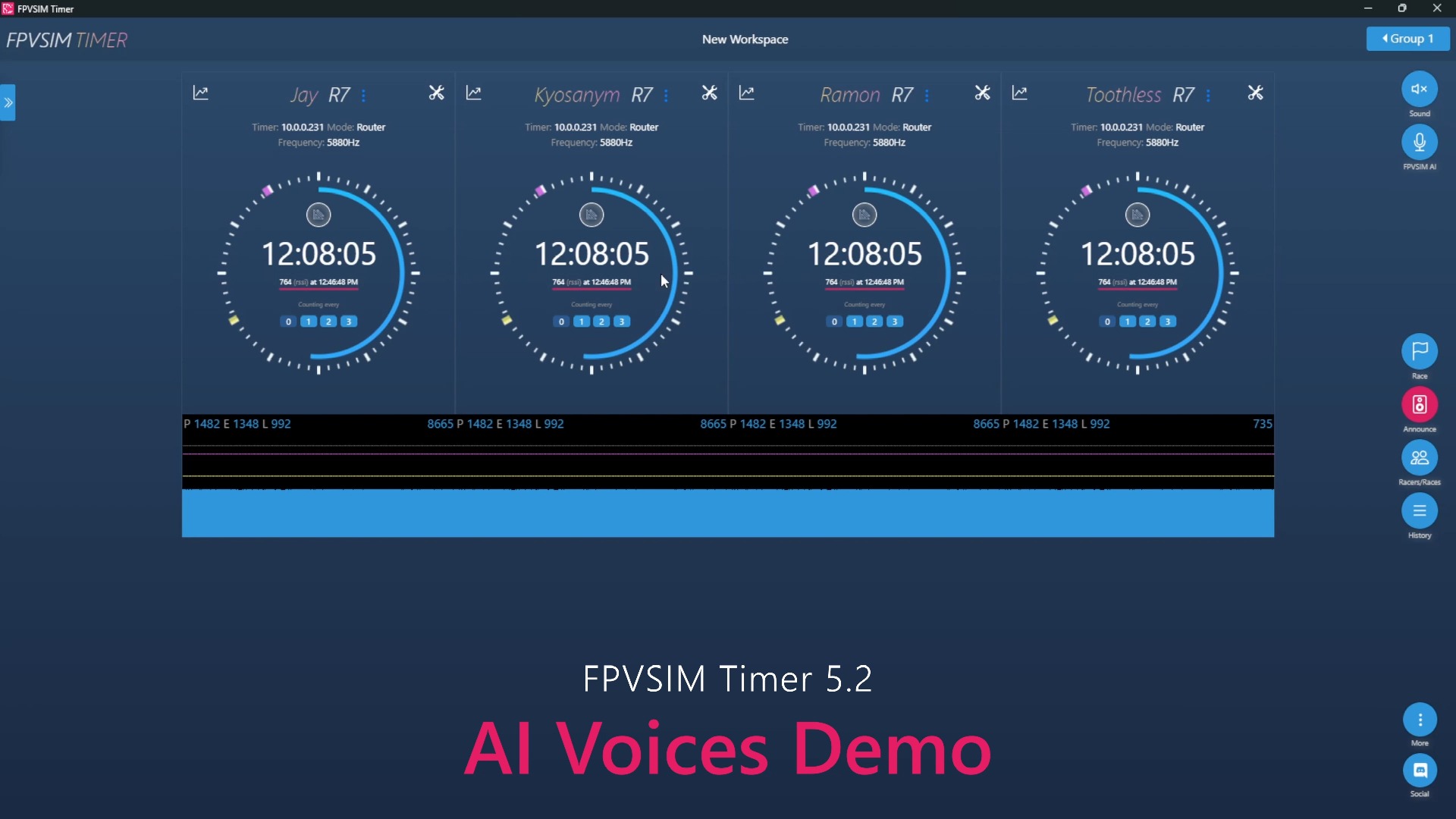
When FPVSIM Timer 3.0.1 was released, a real-time timing Overlay for OBS was added, which can overlay players, laps and rankings onto the live broadcast screen as browser sources. This tutorial organizes the timing server, OBS source, number of rows and columns and complete rehearsal process according to the official video description, and makes it clear that the platform support information at that time does not represent current compatibility.
First confirm that the current version still supports the timing overlay
At publication, the official video identified Timer 3.0.1 as supporting the feature. It stated that desktop use had been tested, Android was expected to work, and iOS was unsupported at the time. These statements describe the recording context in 2024. Before a live broadcast, check the current Timer App release notes to confirm that your platform still provides the timing server, broadcast, or OBS overlay feature.
Prepare OBS Studio and timing and broadcast computers that can access each other. Configure the actual pilot count, names, channels, groups, and race type in advance. Use a wired network or thoroughly tested Wi-Fi to reduce the risk of interruptions and LAN isolation.
Connect the Timer timing service to OBS
Enable the timing server or broadcast feature in your current Timer App version, using the overlay address and connection instructions displayed by the app in your setup. Do not copy an address belonging to someone else’s LAN from a public video, and do not assume that old ports and paths will remain unchanged indefinitely.
Create a Browser Source in OBS and enter your own overlay address. Set the overlay columns per row according to the actual pilot count, then adjust the OBS source size and position so the pilot cards are clear and do not obscure important information in the main picture.
Rehearse the full workflow before going live
Use the same number of test pilots as in the actual event and run through starting, counting laps, finishing, correcting results, and submitting them. The broadcast operator should check in the OBS preview that names, lap counts, standings, race status, and disconnected states all update as expected.
A blank or stalled overlay usually calls for four checks: whether the Timer timing service is enabled, whether OBS can access the address supplied by the app, whether the test race has produced data, and whether a firewall or guest network is isolating LAN devices.
Keep the overlay on a trusted LAN
The main use case is a local Timer App supplying timing data to OBS. Do not expose the timing service directly to the internet unless current official documentation provides a supported and secure method for public-network access.
On race day, keep the rehearsed address, source dimensions, column count, and network connection fixed. Retain a preview scene that is not part of the live program output. If a problem occurs, restore the data in preview first, then switch it to the live output.
Operation steps
- Confirm platform support in the current Timer App
Check the current release notes to confirm that your desktop or mobile platform still includes the timing server or OBS overlay.
- Prepare a test race at the actual event scale
Use a pilot count, names, channels, and race type close to those of the real broadcast so you can lay out the overlay accurately.
- Enable the timing service in the Timer App
Enable the broadcast or timing server control for the current version and record the address the app generates in your setup.
- Create a Browser Source in OBS
Enter your own overlay address; do not copy a LAN address from a public video.
- Adjust the columns per row and source dimensions
Make the pilot cards clearly readable at the target resolution without covering the main race footage.
- Complete a full rehearsal
Test starting, counting laps, stopping, correcting results, submitting them, and abnormal states. Observe each overlay update.
- Keep the event network and preview scene fixed
Operate on a trusted LAN and retain a private preview for recovery from problems.
FAQ
Which Timer version first supported this overlay?
The official video description named Timer 3.0.1 as the supported version at the time. Before using it at an event, confirm that the current version still provides the feature.
How do I change the number of pilot cards shown per row?
Use the overlay columns-per-row setting together with the OBS Browser Source dimensions, then check readability in a preview at the actual broadcast resolution.
Does this video establish that iOS is supported now?
No. The video states that iOS was unsupported at the time. Current compatibility must be determined from the latest platform information and actual testing.
What should I do if the overlay is blank or does not update?
Check that the timing service is enabled, OBS can access the address shown by the app, the test race has generated data, and no firewall or guest network is blocking LAN connections.
Can I expose the overlay address to the internet?
Do not assume this is appropriate. The workflow relies on a trusted LAN. Consider external access only if current official documentation explicitly provides a secure, supported public-network method.
Full timeline transcript
Transcripts are arranged according to video time, making it easy to quickly locate the explanation content. Transcript language: English.
Welcome to FPVSIM Timer. Racers Up Next, All Pilots. In less than 5. Hole Shot J 10 seconds 38 10 seconds 52 17 15 17 81 21 44 14 94 12 6