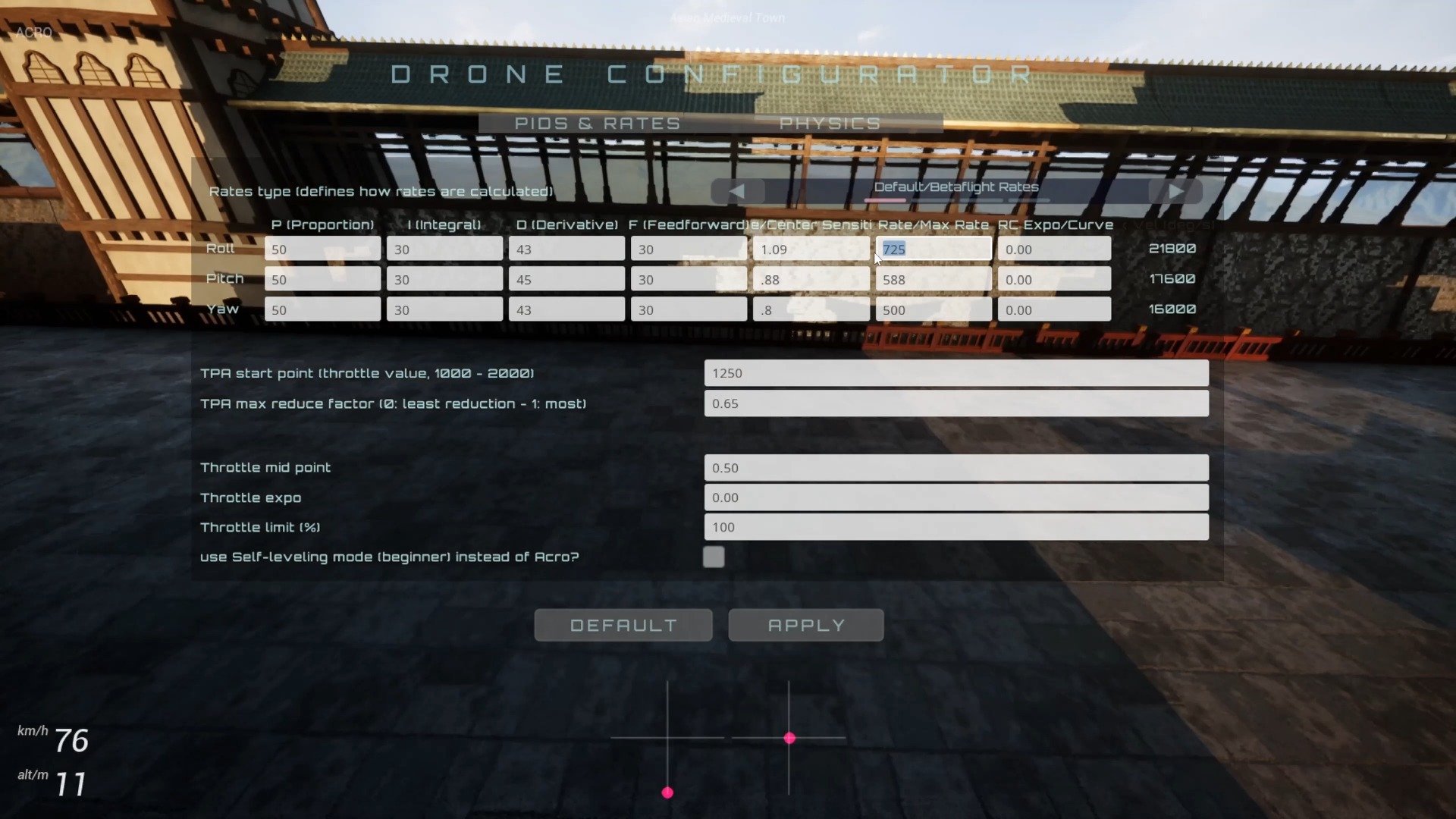
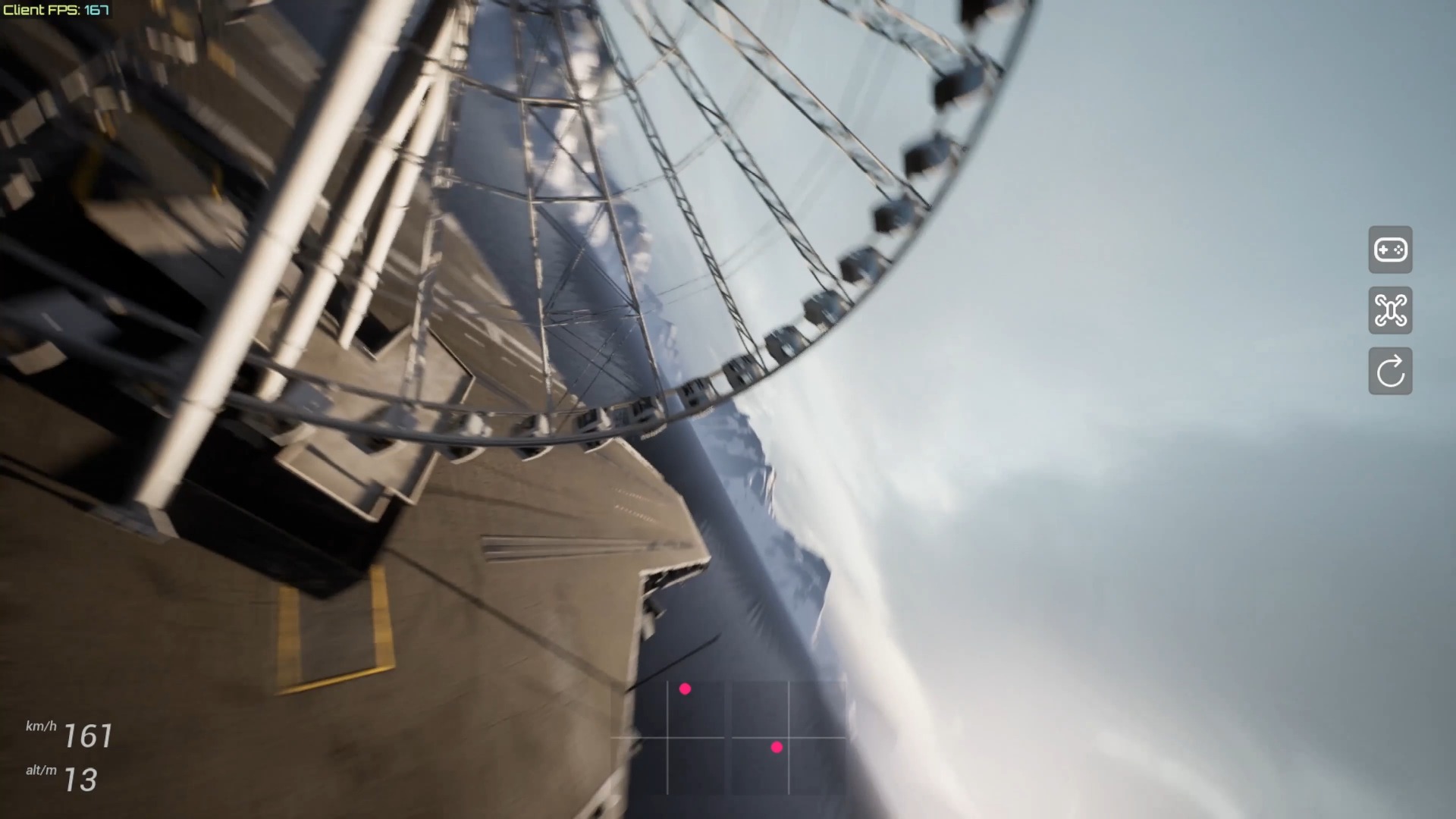
This unnarrated short film documents the launch of FPVSIM on Steam (app 2605530) and showcases new scenes based on Epic/UE Habitat 67 content. The RTX 3080 at the time of release and the highest image quality of about 60 FPS is just a snapshot of a single hardware and version. The actual frame rate still depends on the resolution, driver, scene and subsequent versions.
The main changes introduced by the Steam release
This update brings FPVSIM to Steam under app ID 2605530. For users, the main advantage of the Steam version is having downloads, updates, and library management in one place; other options, including direct installation from the official website, were still available at the time. Check the current fpvsim.com and Steam store pages to find out whether each installation channel is still offered, whether licenses work across channels, and whether their update schedules match. Do not rely on assumptions from the release video.
The video has no spoken commentary, and its automatic transcript correctly identifies it as having no speech. This article therefore does not invent an installation demonstration or menu workflow. It organizes the verifiable distribution, map, and performance information from the official release notes. Before purchasing or reinstalling, check the currently supported operating systems, input devices, languages, and procedures for migrating saves and settings.
Habitat 67 is suited to free flight and learning the space
The release includes a new map based on Epic / Unreal Engine Habitat 67 content, intended mainly for freestyle and casual flying. Its building masses, layered platforms, and changes in elevation provide opportunities to practice navigating obstacles, flying close to structures, looking for exits, and controlling speed. You do not need to treat it as a timed race course and chase the fastest line from the start.
When first entering a complex architectural scene, reduce your speed and explore the flyable areas, then choose two or three clear landmarks to form a short route. Repeat the route with the same aircraft and Rates settings. Once you understand the spatial relationships, move closer to structures or increase the difficulty of your maneuvers. Available map content and names may change between versions; use the current map list as your reference.
The 60 FPS figure is not a universal performance promise
According to the official release notes, an RTX 3080 could achieve about 60 FPS with all visual settings at their maximum at the time of release, with further optimization planned. That figure describes only the hardware, drivers, resolution, and version used at the time. Different CPUs, graphics cards, display resolutions, background applications, and thermal limits can affect both frame rate and frame time.
When evaluating your own computer, observe sustained frame rate and stuttering on the same map with identical settings, rather than looking only at momentary peaks. If input response feels inconsistent, lower the most demanding visual options or the resolution first, then compare frame times. Consistent response matters more for simulator training; maximum visual quality should not come at the expense of controllability.
Treat the release video as a snapshot of a past version
The Steam page, pricing, system requirements, and installation channels continue to change, so the options available at release may not reflect the present. Before installing, confirm the requirements on the current store page and save your existing radio calibration, aircraft, Rates, and graphics settings. If different channels use different configuration directories, follow the official migration instructions.
After entering a new version, run a short test in a familiar scene to confirm that radio axis directions, calibration, frame rate, and audio work correctly before starting regular practice. If performance differs substantially from the release example, record the resolution, graphics settings, drivers, and hardware information before troubleshooting. Do not treat the RTX 3080 example as a benchmark that every system must meet.
FAQ
What is the Steam app ID for FPVSIM?
The Steam app ID in the release notes is 2605530. Refer to the current store page for pricing, system requirements, and regional availability.
What can I practice on the Habitat 67 map?
The official description presents it as a freestyle and casual flying scene. Its architectural structures and elevation changes also suit exploring the space, repeating short routes, and practicing close to obstacles.
Is an RTX 3080 guaranteed to maintain 60 FPS at maximum graphics settings?
No. Approximately 60 FPS was a snapshot of one configuration at release. Resolution, CPU, drivers, temperature, scene, and subsequent versions can all affect the result.
Should I install through Steam or the official website?
The video establishes only the historical context of the two distribution channels at release; it cannot determine compatibility for users today. Choose based on current channel availability, update methods, and official migration instructions.
Transcript description
There is no timeline transcript available for publication for this video.
Auto-transcription did not detect credible and understandable speech; this article is only compiled based on video footage and official introduction.