FPVSIM Drone Simulator Manual

This briefly summarizes what's needed to get started with the FPVSIM Drone Simulator game. For how to setup to fly anywhere in the world with Google Maps, check this out.

Please make sure you have subscribed to one of the paid plans on fpvsim.com to be able to access all features of the game. Subscribe here. Appreciate your support!

1
Radio/Controller Setup

1. Plug in your radio to the computer, choose Joystick mode if prompted from the radio.

2. Launch the game, go to Options -> Radio & Gamepad
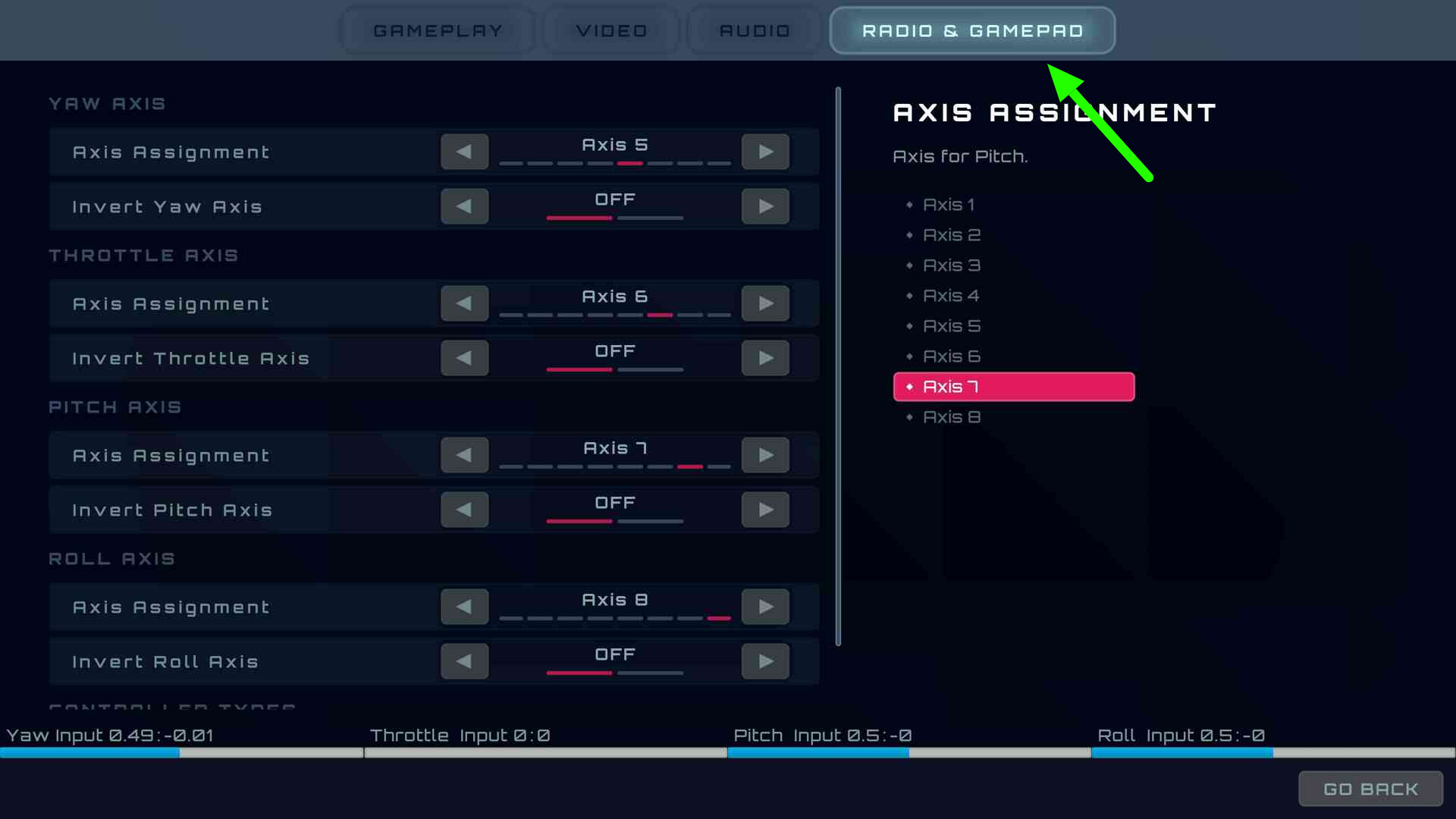
FPVSIM Gamepad Calibration View

3. If you are using DJI controller or X-Lite controller, be sure to choose the correct controller type. Otherwise, leave it as "Generic"
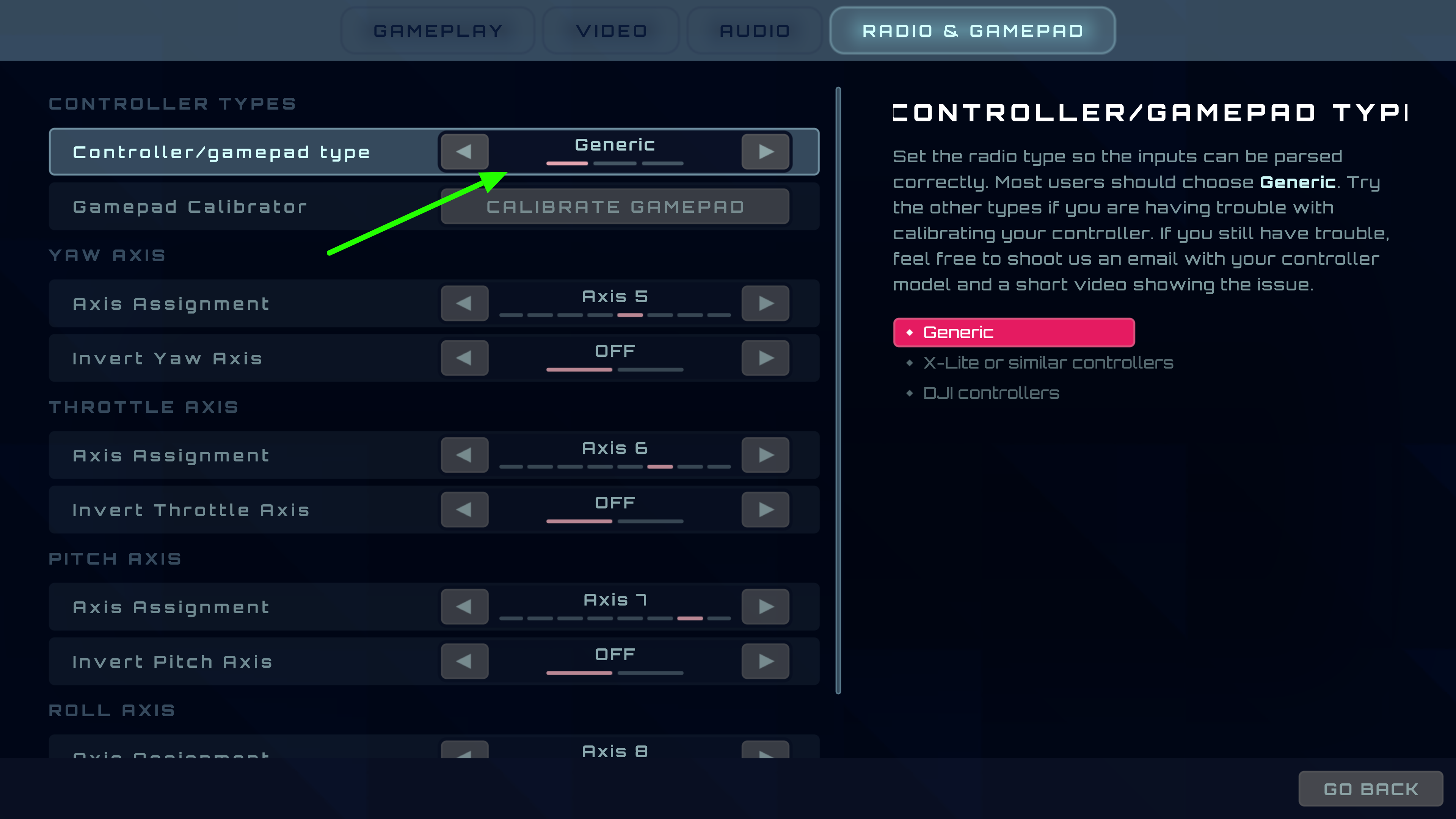
FPVSIM Gamepad Calibration View - DJI/X-Lite/Generic controller types.

4. Then click on the "Calibrate Controller/Gamepad" button to enter the calibration tool
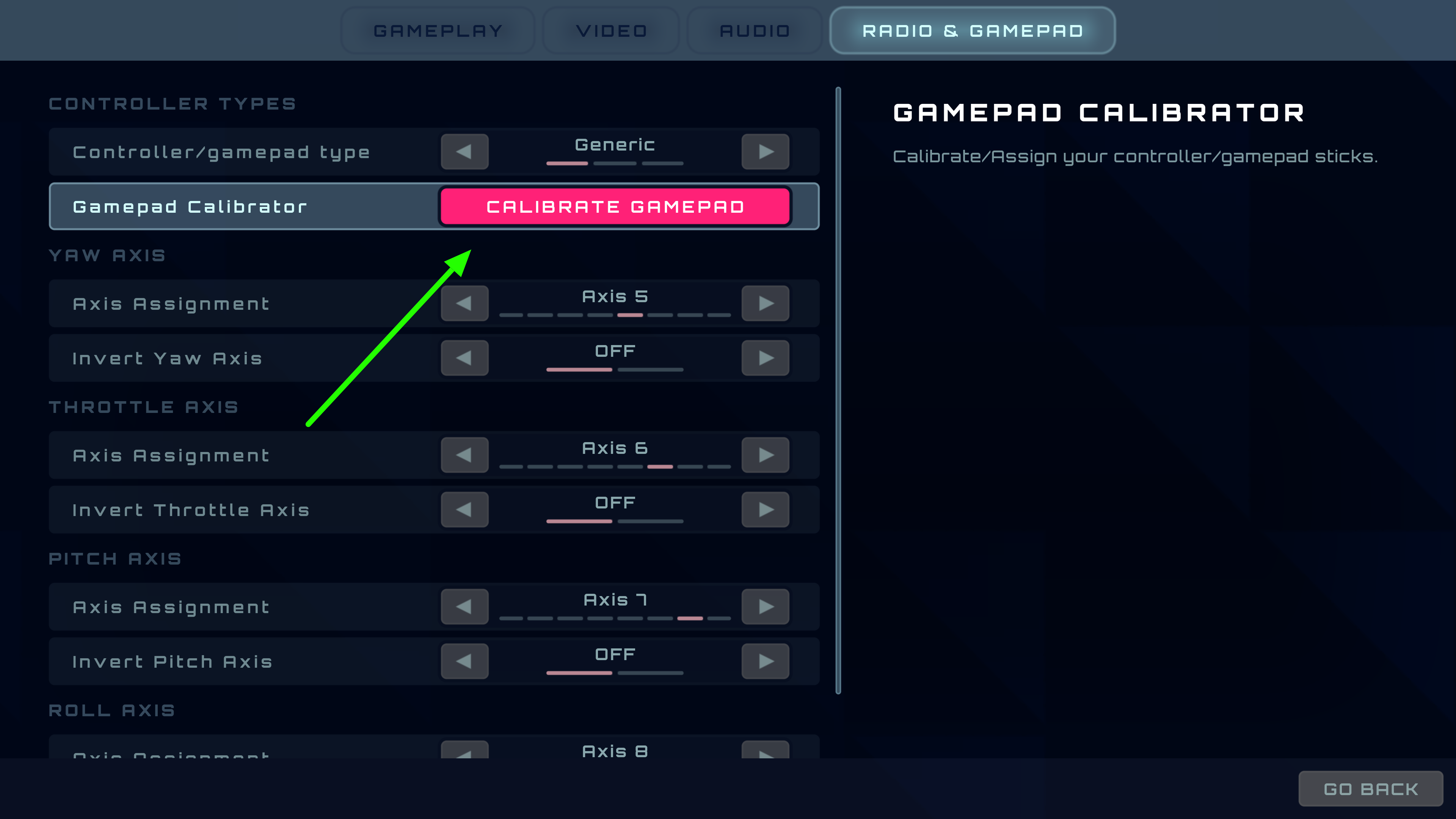
FPVSIM Gamepad Calibration View - calibration tool button.

5. Follow the instruction in the tool to finish calibration.
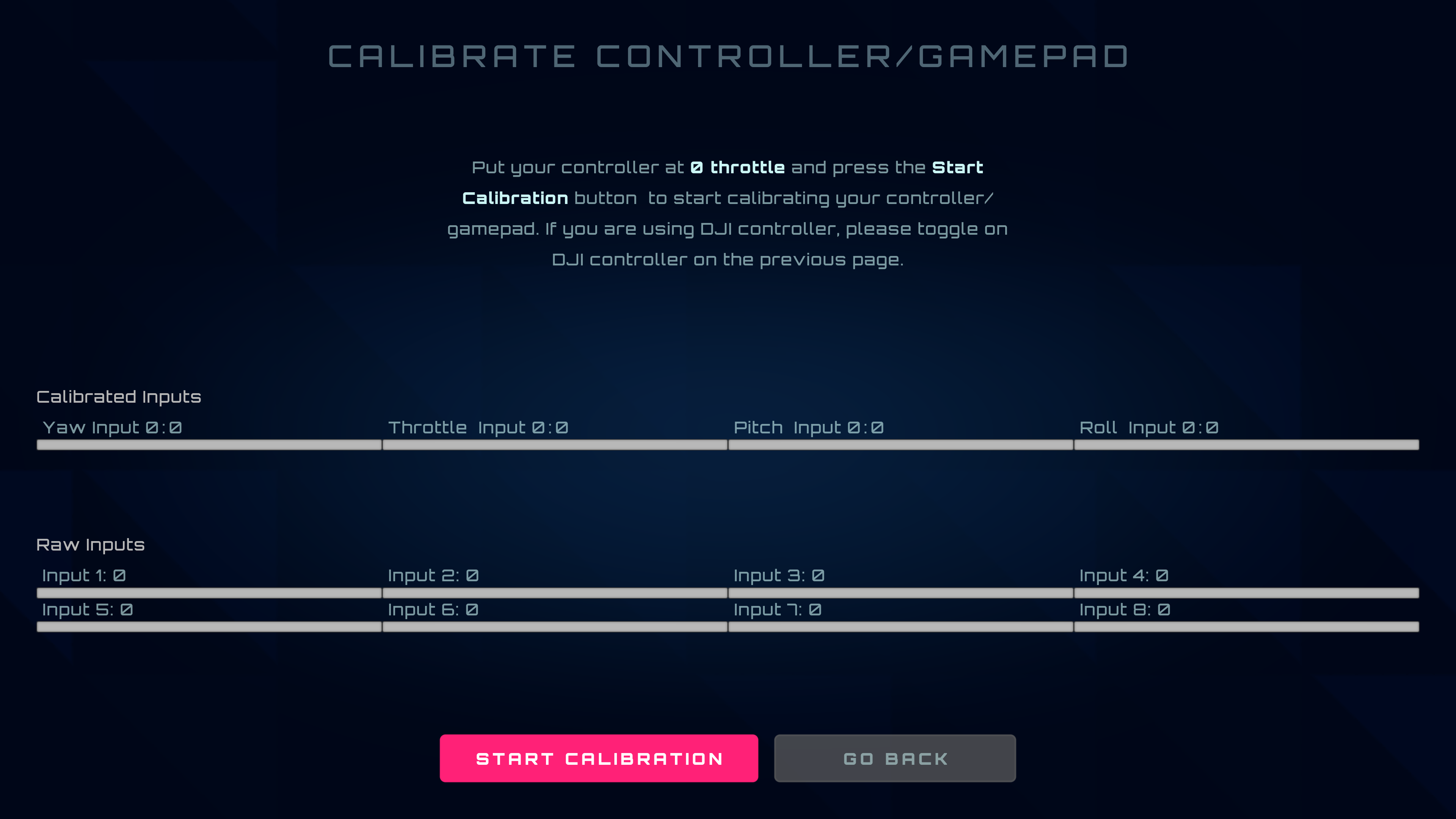
FPVSIM Gamepad Calibration View - calibration tool view.
2
For less powerful hardwares

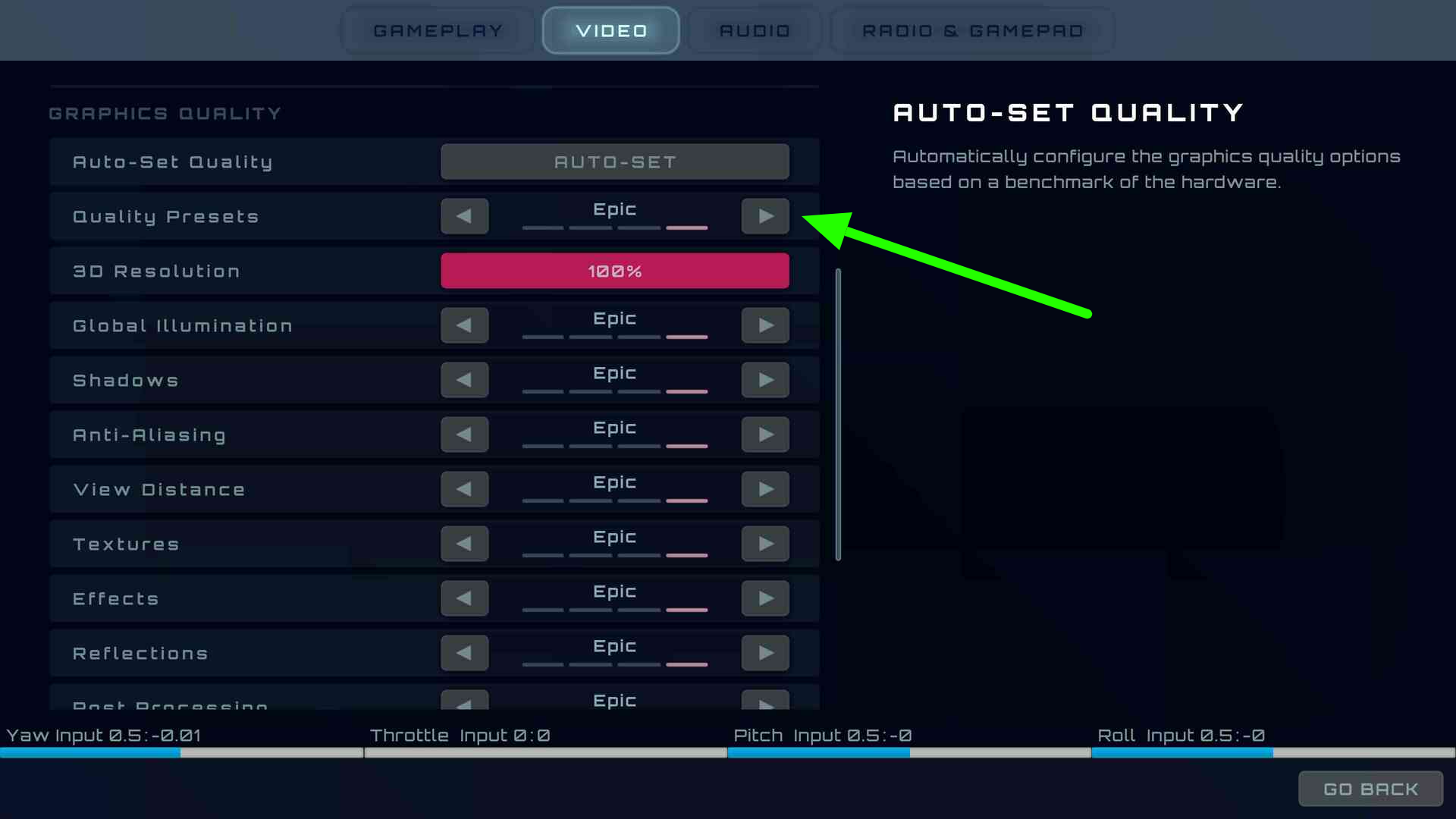
If you have a less powerful hardware or simply want higher frame rate, set the video quality to low.

FPVSIM Video Settings - Adjust Video Quality

You can use NVIDIA performance stats (Alt + R) to see where the bottleneck is. If CPU is the bottleneck, you can tune up the video quality as lowering it won't help much anyway.

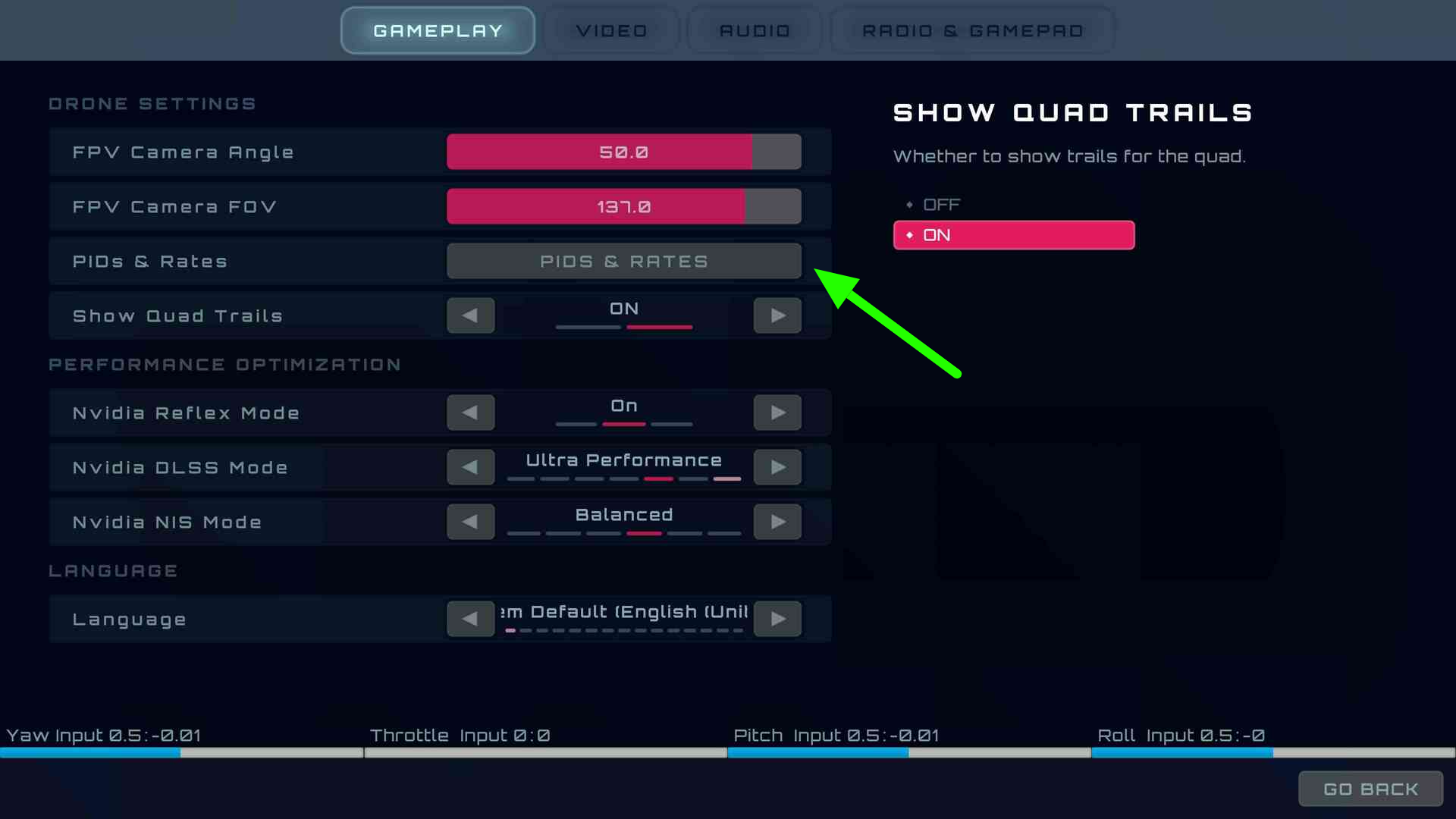
For supported hardware, you can turn on NVIDIA Reflex/DLSS/NIS mode to further improve the performance.

3
Rates and PID settings

FPVSIM added in-game PID, rate, and drone-physics settings in its September 2023 update. The account-sync screenshots below show the older workflow; use the rate-system guide for the in-game controls.

Compare Actual, Quick, and KISS rates

Original in-game settings announcement

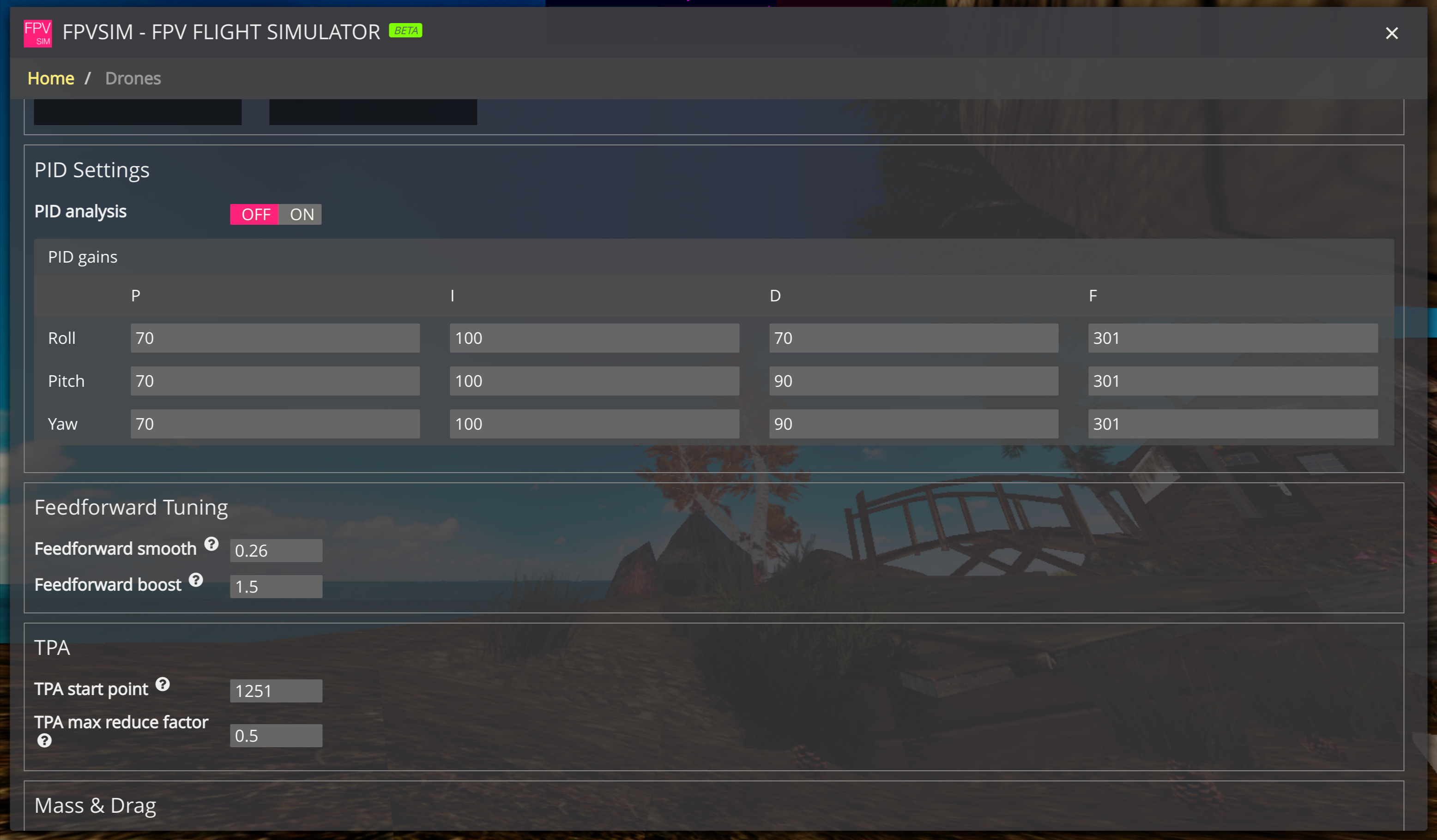
Setting PIDs on fpvsim.com/sim

FPVSIM PID Settings View

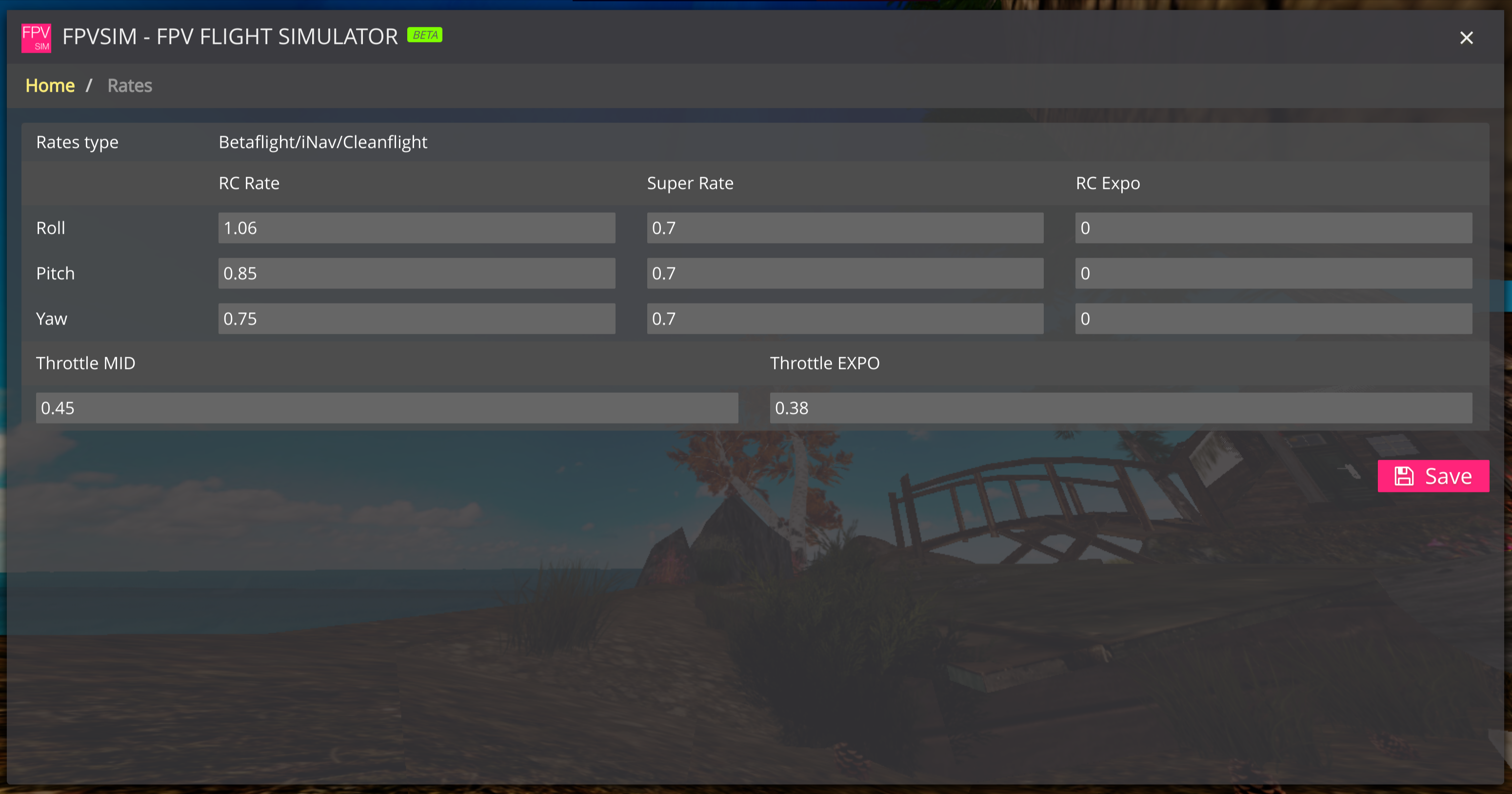
Setting Rates on fpvsim.com/sim

FPVSIM PID Settings View

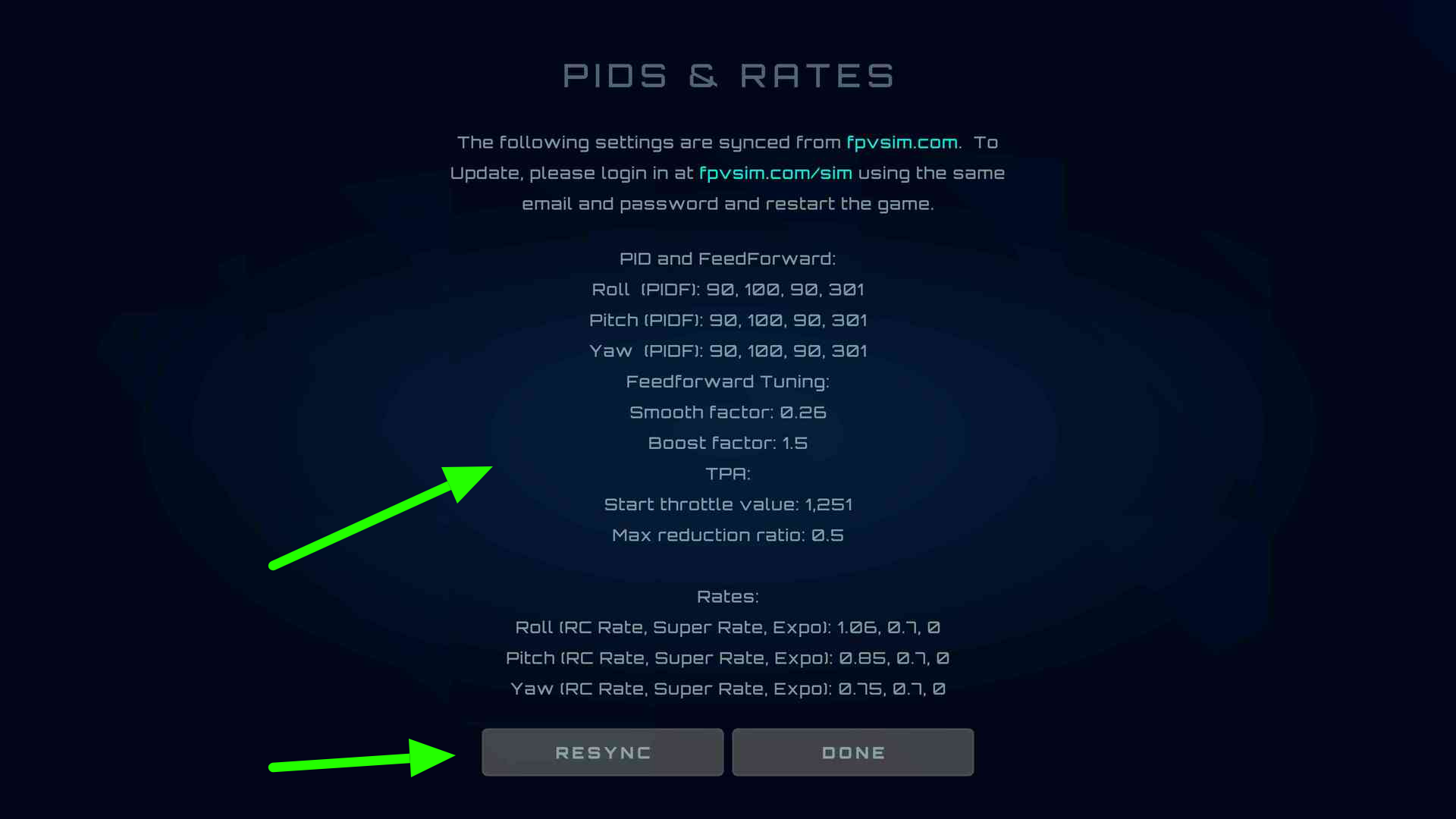
Sync PIDs and rates

FPVSIM PID Settings View
4
Useful keyboard Shortcuts

Key L: reset the crash respawn location to the current location.

Key R: respawn at the respawn location.

5
How to setup to fly anywhere in the world with Google Maps

Please follow the following video tutorial (4 mins watch, the rest is flying around)


6
Review your practice with a replay

A saved DVR lets you revisit the racing line after a flight. Compare your approach, turn, and exit before changing settings. The linked practice example includes a replay you can open in the simulator.

Open the example replay

Watch the original practice clip

Compare Actual, Quick, and KISS rates

Please join our Discord server if you would like to hangout or if you have any questions!