This is a comprehensive troubleshooting guide for older versions of the Dronesitter web emulator, covering Physics FPS and Render FPS adjustments for low-end computers, remote control compatibility/high-speed mode and calibration, Chrome latency-related settings, and site sound permissions. The core idea is to first reduce the load to obtain an operable baseline, and then increase the frequency one by one; the controller first confirms the device and channel, and then performs endpoint calibration; the browser and event information belong to the historical environment of 2022 and cannot be directly copied to the current version.
First understand the physical frequency and rendering frequency respectively
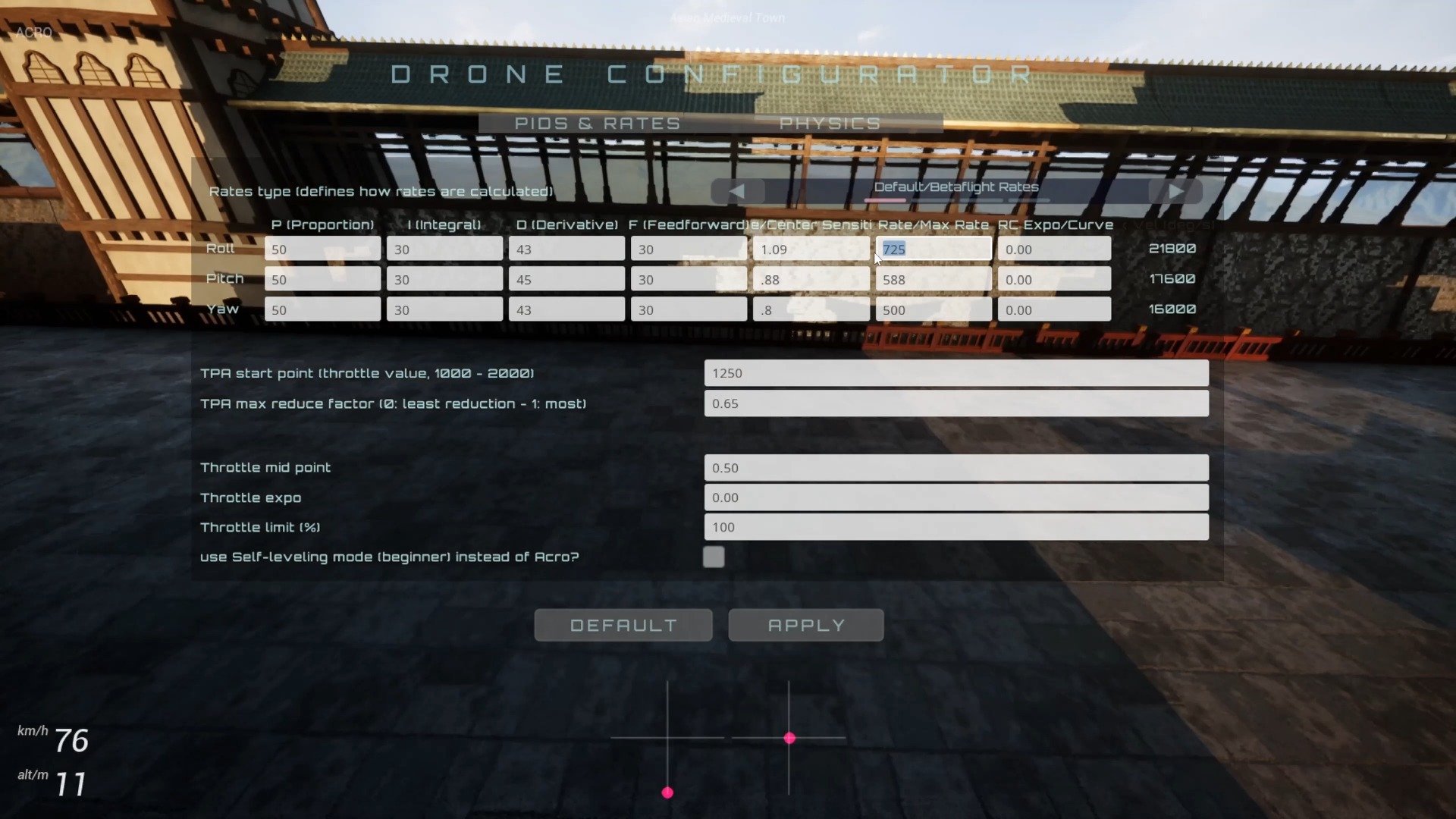
Physics FPS determines how many times the physics simulation is updated per second, and Render FPS determines how many frames the picture is drawn per second. When a low-configuration device freezes, pulling both items high at the same time will superimpose the load on the CPU and GPU. The video recommends first lowering the physical frequency to the lowest value allowed at that time, 100, and reducing the rendering frequency to about 20. After confirming that the simulator can run stably, gradually increase it.
Hua Fei is less dependent on extremely high frame rates, while racing is more sensitive to input lag and picture continuity. Don’t just pursue the maximum number on the interface: if the Physics FPS is too high and the whole world feels slow, it means that the device cannot complete the operation at the target frequency and should fall back to a sustainable value. If it still doesn't work with the minimum settings, consider browser, driver or program defects.
Connect and calibrate the remote control
The video explains that OpenTX-based remotes can usually use High Speed Mode, and that regular GamePad or current mobile browsers can use Compatibility Mode first. When switching to Highspeed Mode, the system will ask for recalibration; first connect the device, select the correct remote control in the pop-up list, and then move the joystick according to the wizard.
At the beginning of the calibration, the joystick value range is recorded, and then the user is asked to center and move roll, pitch, throttle and yaw in sequence. Mode 1, Mode 2, Mode 3 or Mode 4 can all be used, the key is not the physical position of the stick, but when the wizard asks for a certain control axis, moving the stick direction that is actually assigned to that axis.
Browser delay settings should be viewed with caution
Recording describing turning off GPU VSync and frame rate throttling via Chrome launch parameters and requiring future launches of the browser from a dedicated shortcut. This practice is specific to Chrome 2022 and current web emulators; parameter names, support status, and security models may have changed in modern browsers. Do not copy old parameters into your daily browser configuration and assume they are still valid.
A more reliable sequence is: first find stable Physics FPS and Render FPS in the simulator, then check the browser hardware acceleration, system power mode and display refresh rate; only conduct experiments after confirming that the current document still supports the relevant startup parameters, and keep the original shortcut for rollback.
Allow sounds and identify outdated information
When there is no sound on the web page, click the site information icon in the address bar, open Site Settings, and set the Sound permission of the site to Allow. This way the browser can remember the permissions and avoid having to reprocess the autoplay restrictions every time you enter. If the current browser interface is different, you can search for the sound permissions of the site in the settings.
The online competitions, registration groups, prizes and QR codes mentioned at the end of the video are all activities at the time of recording and should not be regarded as still valid. Current users should focus this article on performance, controller and sound troubleshooting; event dates, entrances and qualifications must be confirmed separately through the latest announcement.
Operation steps
- Establish low load baseline
First reduce Physics FPS and Render FPS, confirm that the simulator can run stably, and then increase it one by one.
- Select the connection mode suitable for the device
OpenTX remote control gives priority to test high-speed mode; GamePad or restricted browsers can use compatibility mode first.
- Reconnect and calibrate the remote control
Confirm recalibration after switching to high-speed mode, select the remote control in the device dialog box and follow the prompts to record the range and four control axes.
- Only test old Chrome parameters if compatible
Check the current browser documentation first and retain the fallback method. Do not blindly reuse the startup parameters in 2022.
- Allow site to play sound
Set the Sound permission of the current site to Allow from the site information in the address bar or Site Settings.
FAQ
Which item should be adjusted first on a low-configuration computer?
First reduce the physics and rendering frequency at the same time to establish a runnable baseline, then increase only one item at a time and observe whether the stability, latency and speed are normal.
Physics Is higher FPS necessarily better?
Not necessarily. Stuttering may occur or the world may slow down when the device cannot calculate at the target frequency; the highest stable value that the machine can continuously complete should be selected.
Can both Mode 1 and Mode 2 be calibrated?
Yes. The wizard recognizes input by control axis; regardless of which stick mode is used, the corresponding axis should be moved when prompted for roll, pitch, throttle, or yaw.
Should I still turn off Chrome VSync when taking videos?
Can only be tested after checking the current Chrome documentation and confirming that the parameters are still supported. The video is based on a 2022 environment and old parameters may be invalid or have side effects.
Are the competition registrations in the video still valid?
Cannot judge based on this. Events, QR codes, prizes and registration information are historical content and you must check the latest official announcement.
Full timeline transcript
Transcripts are arranged according to video time, making it easy to quickly locate the explanation content. Transcript language: Simplified Chinese.
Hello everyone, I am Kang Luanke, a well-known software developer for manufacturing and marketing drones. Recently, I have been working on simulators and decorated car simulators. Thanks to many friends for providing some feedback, I also found some common questions, so I will briefly answer them through this video.
For those who don’t know, you can go to johnserator.com and click access.sim to enter the web version of the simulator. After entering the simulator, this is the interface of the simulator, and here is the setting interface. The biggest problem is that the configuration of some friends’ machines is not particularly high, and the response is very laggy. The main two settings are physical FPS, which is how many times the physical simulation is run per second.
Then there is the FPS of rendering. For some non-games and non-game notebooks, the first point of these two values should be set. Of course, for this professional gaming device, the higher the two values, the better. But in fact, I feel that the impact of the first point on this game is not that big. The physical FPS is slightly higher, and then the rendering FPS 60FPS actually has not that big an impact on this cost. Of course, if the speed is high, the delay needs to be lower.
Is this delay or this or this smoothness? In the future, we will play with the video separately. Then if the configuration is relatively low, just drag this to the bottom. Now the physical FPS is the lowest. Set it to 100 and then render. The lowest can definitely be 20. If this can't run anymore.
Most likely there is a problem with my code, there may be a bug. Either message me privately or contact me through other channels, and then we can solve the problem first. Well, this is a question of performance. Another problem is the remote control and the accuracy of the remote control. Remote control calling accuracy should be supported by any system based on OpenTX.
If you are using a GamePad, a controller, or a game controller, you can use Compatibility Mode, and then on a mobile phone, because HighSpeed Mode is not that widely available on mobile phones, so you can only use Compatibility Mode on mobile phones for the time being, but this standard will definitely keep up, so it should be playable on mobile phones in the future.
But at present, I usually teach you on the computer. Let me tell you. First switch to Highspeed Mode. When switching, it will tell you that you need to recalibrate the remote control. Click Confirm. At this time, my remote control has been plugged into the computer. If not plugged into the computer, first plug it into the computer and then look at the computer. The dialog box will display the remote control. After selecting the connection, it will start to enter the calling mode. Follow the instructions.
Press the joystick to move in both directions at the same time. The process of this step is to find the numerical range of this and that of this joystick. Then now follow this prompt to move the joystick to different places. I just happened to have some words. OK, now, take the center joystick and then the left joystick to the far right, right, and then push it up.
[Speech cannot be reliably recognized here]
[Speech cannot be reliably recognized here]
[Speech cannot be reliably recognized here]
Then just save the shortcut key, and then use this shortcut key to open Chrome every time. When you open it with this shortcut key, the GPU Vsync and Firmware Limit will be connected. Then there is the issue of Physics FPS and Render FPS. Drag them to the highest quality that your machine can support.
If you drag it too high at first because of the FPS of Physics, then you will feel that the whole world has slowed down. At that time, you can drag it down a little bit, and you can’t, you can’t, you can’t, it can’t reach that high. OK, this, this, this, what other performance issues are there, I think there is anything else that needs to be talked about
OK, another issue is sound. Because this runs in a browser, there are more restrictions. In Chrome, though, you can enable the sound permission for Dronesitter. How? There is a little padlock here, right? Click it, then open Site Settings. Oh, it looks like the option is already here: Sound. You can enable Sound directly. If Sound does not appear here, go into Site Settings; there is a sound setting there, here.
Then set it to Allow. After allowing it, you can keep the Auto option enabled here, so you do not have to deal with sound again every time you open it, which is annoying. Yes, right here. The sound is still a bit rough at the moment; we will improve it gradually. There is also some good news: the next Liberation Day drone race organized by KFPV will be held on Junset.
Dronesitter is free, so everyone can come and fly and put their results on the leaderboard. The prizes I received in the previous race, worth around 400, will also be shared with the top three and added to the prize pool. You are all welcome to sign up and take part. I will put the QR Code for the Liberation Day group—
—on the screen or in the links below, so you can look for it. OK, that is all for this video. Thank you, everyone.