This tutorial demonstrates the basic flow of a QuadRank Timer 2.0 application: keeping the app and the timer firmware on the same version, connecting to the timer's own Wi-Fi hotspot, selecting a channel consistent with the aircraft's VTX, initiating auto-calibration and passing the timing gate multiple times. The application determines the crossing moment based on the entry threshold, exit threshold and intermediate peak value of the RSSI signal, and then uses the time difference between adjacent peaks to calculate the lap speed.
First match the versions, network, and channel
Before updating, confirm that the app and timer firmware versions match. If the firmware protocol and interface are incompatible, settings fields, channels, or detection may behave incorrectly even if the hotspot connects. Power on the timer, join its hotspot from the phone’s Wi-Fi settings—the recorded version uses QuadRank- followed by a device suffix—then open the app and wait for automatic connection.
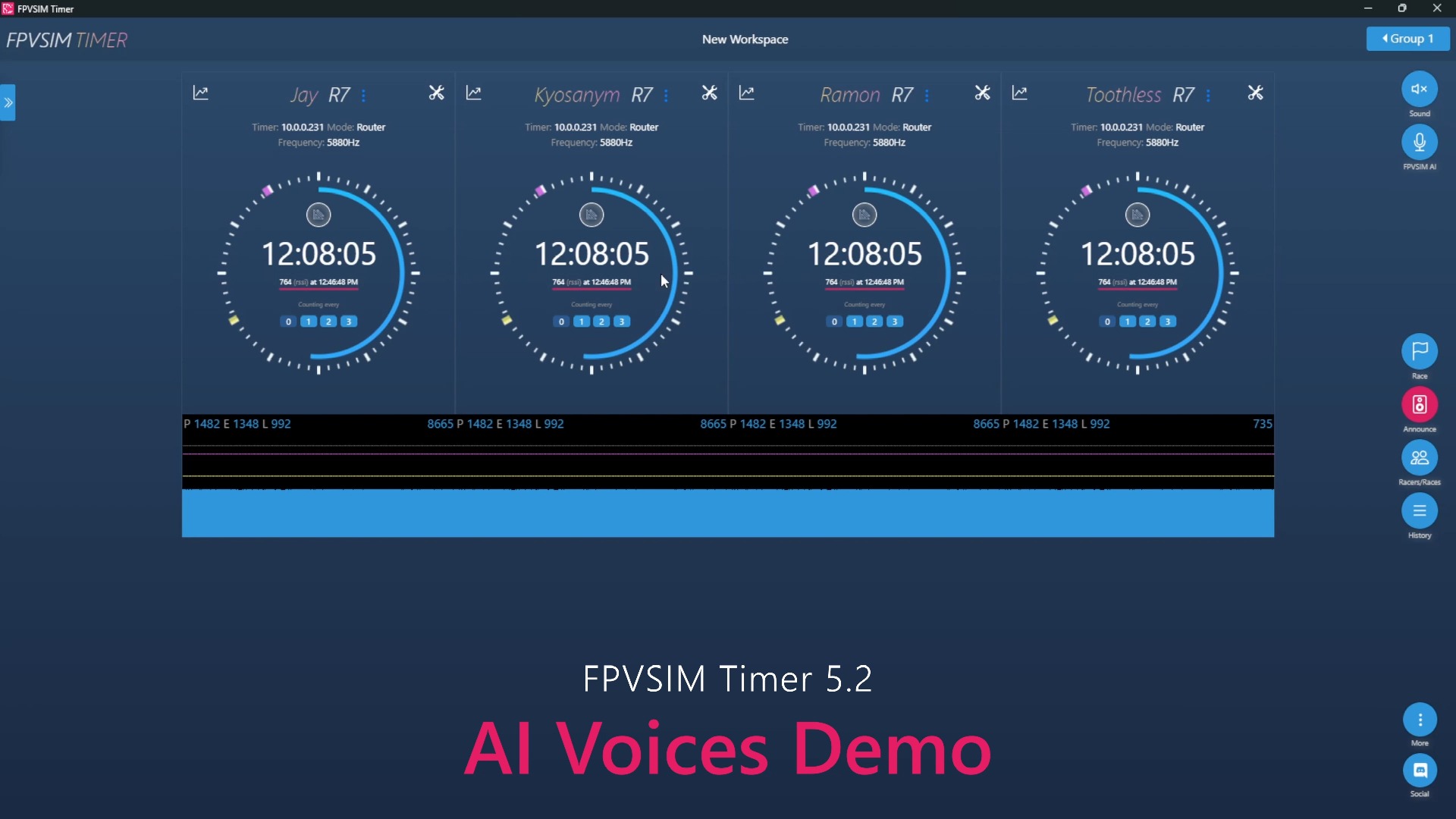
The main screen shows the elapsed time for the current lap and live signal strength. In settings, choose the same band and channel as the aircraft’s video transmitter. On the wrong channel, the timer may see only background noise or another pilot’s signal. QuadRank Timer 2.0 in the recording is an early version. Use current FPVSIM Timer documentation for hotspot names, download locations, and menus.
Automatic calibration needs real gate-pass samples
After pressing the circular start button, the app first enters automatic calibration. During calibration, fly the intended aircraft through the timing gate several times along the actual racing line. The video says two or three passes within a minute provide multiple peaks. If no pass is detected, the process extends until it obtains a valid sample.
Calibration samples should resemble normal flight height, speed, power, and line. An extremely strong signal from moving a handheld aircraft close to the timer is not a substitute. Recalibrating is safer after changing hardware, VTX power, channel, gate position, or the venue environment. The automatic transcript is damaged at the explanation of which aircraft can share a calibration, so this article does not extend that claim.
How entry, exit, and the peak define a lap
The interface uses two thresholds to define the detection window. The signal must first rise above the entry threshold for the timer to consider the aircraft in view. It then has to fall below the exit threshold to end the pass. Within that window, the moment of the strongest RSSI peak is treated as the time the aircraft crossed the timing point.
The next valid pass produces another peak, and the time between the peaks is the lap time. Two thresholds prevent repeated triggering when the signal fluctuates around a single line. If the peaks are clear and every pass is recorded, keep the default sensitivity. Make small changes informed by the signal plot only when missed or false detections are repeatable.
Timer placement matters more than blind sensitivity adjustments
The video recommends placing the timing point near a gate on a straight where the aircraft moves quickly on a clear line. Approaching, passing, and moving away then produce a distinct peak. Closely spaced gates, slow circling near the timer, or another nearby course section can broaden the RSSI curve or create competing peaks, making thresholds harder to set.
For missed laps, first check the channel, antenna, timer orientation, power, and placement. Then inspect whether the signal actually crosses the entry threshold and falls back below the exit threshold. The colors and dragging directions in the recording belong to the old interface. Use the current labels and live plot rather than mechanically copying the purple and yellow line positions.
Operation steps
- Match the app and firmware versions
Record both versions before upgrading and ensure the timer firmware and app are compatible releases.
- Connect to the timer hotspot and open the app
Power on the timer, join its Wi-Fi network, and wait for the app to show the live signal screen.
- Select the same channel as the VTX
Verify the band and channel in settings so the timer is not listening on the wrong frequency.
- Start automatic calibration and make several gate passes
Pass the timing point two or three times at normal line, speed, and power so the system captures representative peaks.
- Confirm entry, peak, and exit
Watch the signal enter the detection window, form a clear peak, then fall below the exit threshold.
- Adjust sensitivity only with clear evidence
Check the channel and placement first, then make small changes from the live plot and verify with repeated normal passes.
- Move the timing point to a straight with distinct peaks
Avoid other nearby course sections and slow-circling areas to reduce broad peaks, missed detections, and false triggers.
FAQ
Why must the app and firmware versions match?
Different releases may change communication protocols, fields, and channel settings. Incompatible versions can cause connection or detection problems.
How many passes are needed during calibration?
The video recommends two or three normal passes within about a minute. The process keeps waiting if no valid pass is detected.
How does the timer determine the moment of a gate pass?
A pass begins when the signal crosses the entry threshold and ends when it falls below the exit threshold. The time of the strongest RSSI peak within that interval is used as the crossing time.
Should I immediately increase sensitivity when a lap is missed?
No. First verify the channel, position, antenna, and signal plot. Defaults usually work; make small adjustments only when evidence is repeatable.
Why is a gate on a straight recommended as the timing point?
A fast approach and departure more easily create one clear peak, avoiding ambiguous detection from slow movement or neighboring course sections.
Full timeline transcript
Transcripts are arranged according to video time, making it easy to quickly locate the explanation content. Transcript language: Simplified Chinese.
Hello, hello everyone, I am QuadRank. I have just released version 2.0 of the QuadRank racing timer, so this is a good opportunity to explain how to use its app. First, make sure the racing timer is on. Open Wi-Fi settings and find QuadRank- followed by a suffix. Mine is -N here, right? I have now connected to its Wi-Fi. Once connected, open the app.
It automatically connects to the hotspot, the racing timer’s hotspot. Once connected, you see this screen. The main things it displays are—
—the time spent on the current lap, and this blue ring showing the detected signal strength. How do we use it? First make sure you have selected the channel your aircraft uses. For example, we can set the channel here in settings.
My aircraft is on Raceband channel six, which you can set here. You could also use channel four or channel six. To start, just press the button in the middle of this circle. It starts with automatic calibration, so we do not need to intervene manually. During calibration, simply fly the aircraft through this gate.
2 seconds, 6 seconds, 61
You can pass through the gate two or three times during this minute. If you do not pass through it during the minute, the time is extended until you do. Multiple passes within a minute make the detected signal peaks more accurate. It has now been about a minute, so I will make one final pass through the gate.
[Speech cannot be reliably recognized here]
[Speech cannot be reliably recognized here]
It detects the aircraft passing, then calculates the lap time from the interval between two passes. Here we see two markers, one purple and one yellow. What do they mean? These markers represent detection sensitivity. The purple one is the entry sensitivity, meaning—
—the signal has to exceed the purple marker before I count the aircraft as entering view. Only when it falls below the yellow marker do I count the aircraft as leaving view. Between entering and leaving, there is a maximum signal peak, right? The moment of that peak is when the aircraft passes the timer. I then use the time difference between two peaks—
[Speech cannot be reliably recognized here]
[Speech cannot be reliably recognized here]
[Speech cannot be reliably recognized here]
If you put it in a winding section, the peak is less distinct. Consider that when choosing the racing timer’s position. That is a simple demonstration and explanation. If you have questions or encounter problems with a DIY build, leave a comment or send me a message. I will respond as soon as I see it.
I am QuadRank. Please like, save, and share the video. See you next time. Bye-bye.