This guide introduces the remote control calibration tool of the new version of FPVSIM: first check the original input to confirm that the device is recognized, then follow the wizard to push the throttle, roll, pitch and yaw to the specified endpoints. After completion, check whether the calibration value is consistent with the joystick action. Ordinary gamepads can also be mapped to dual joysticks; DJI remote controls need to turn on the dedicated compatibility option as shown in the video, and non-DJI devices must keep this option turned off.
First understand raw and calibrated input
Open Calibrate Gamepad on the FPVSIM radio / gamepad page. The top of the page shows calibrated input, while the bottom shows raw input reported directly by the device. The default interface in the video can detect eight input axes; the actual channel count depends on the connected controller and driver. Before calibrating, move each stick and confirm that raw input changes with the movement.
Raw input confirms that the system is reading the device. Calibrated input is the value FPVSIM uses for flight after converting endpoints and directions. If raw input does not move at all, troubleshoot USB, operating-system device recognition, or controller mode first instead of repeatedly running calibration.
Follow the wizard to record the four main control axes
After clicking Start calibration, follow the on-screen prompts: move throttle fully up, roll fully right, pitch fully up, and yaw fully right in that order. At each step, hold the stick steadily at its mechanical endpoint so the software can record the axis direction and usable range. After all four directions, the wizard generates the calibration result.
Do not immediately start flying. Move the four axes slowly and check that calibrated input corresponds to each physical movement. Verify that the centers are stable and the endpoints reach the expected range. If an axis is reversed or the wrong channel moves, recalibrate, making sure each prompt is matched to the correct stick movement.
Differences between gamepads and DJI controllers
An ordinary gamepad can use its two joysticks for control, but you must decide which directions correspond to throttle, yaw, pitch, and roll. Its centering behavior and feel may differ from an RC radio, so after mapping, test with small inputs in a safe, simple map.
The video explains that DJI controller firmware at the time required special input handling, so the DJI-specific option on the page must be enabled for a DJI controller. If the connected controller is not from DJI, that option must be off or the data may be read incorrectly. This compatibility information applies to the software and firmware at the time of recording. For newer devices or changes to the FPVSIM interface, follow the current version’s prompts.
Quick checks before entering a map
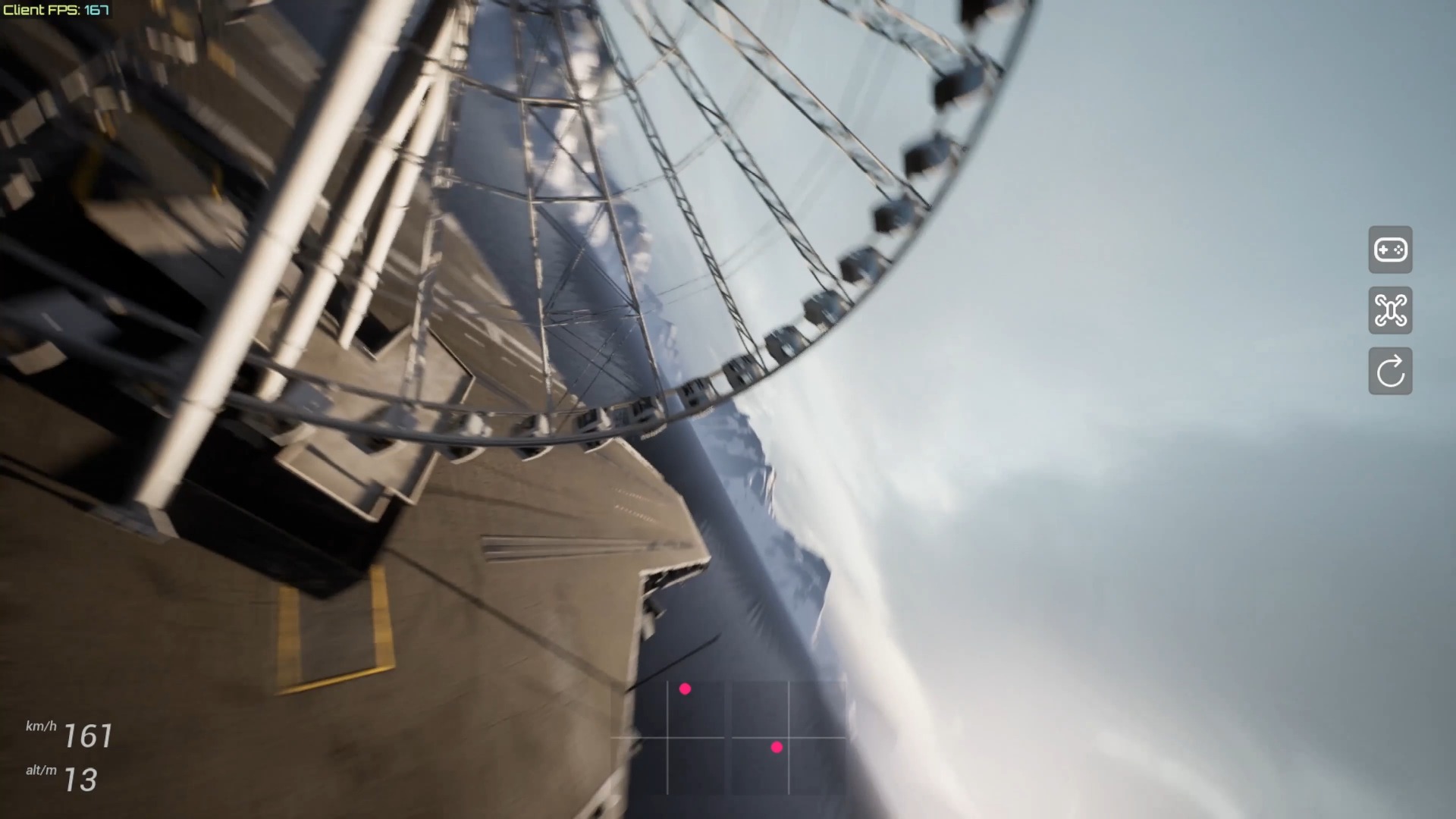
Confirm that all four axes change continuously, move in the correct directions, and remain stable when the sticks return to center. Check that device-specific options match the actual hardware. Then choose a familiar, open map, start with gentle throttle and small attitude inputs, and increase the movements gradually.
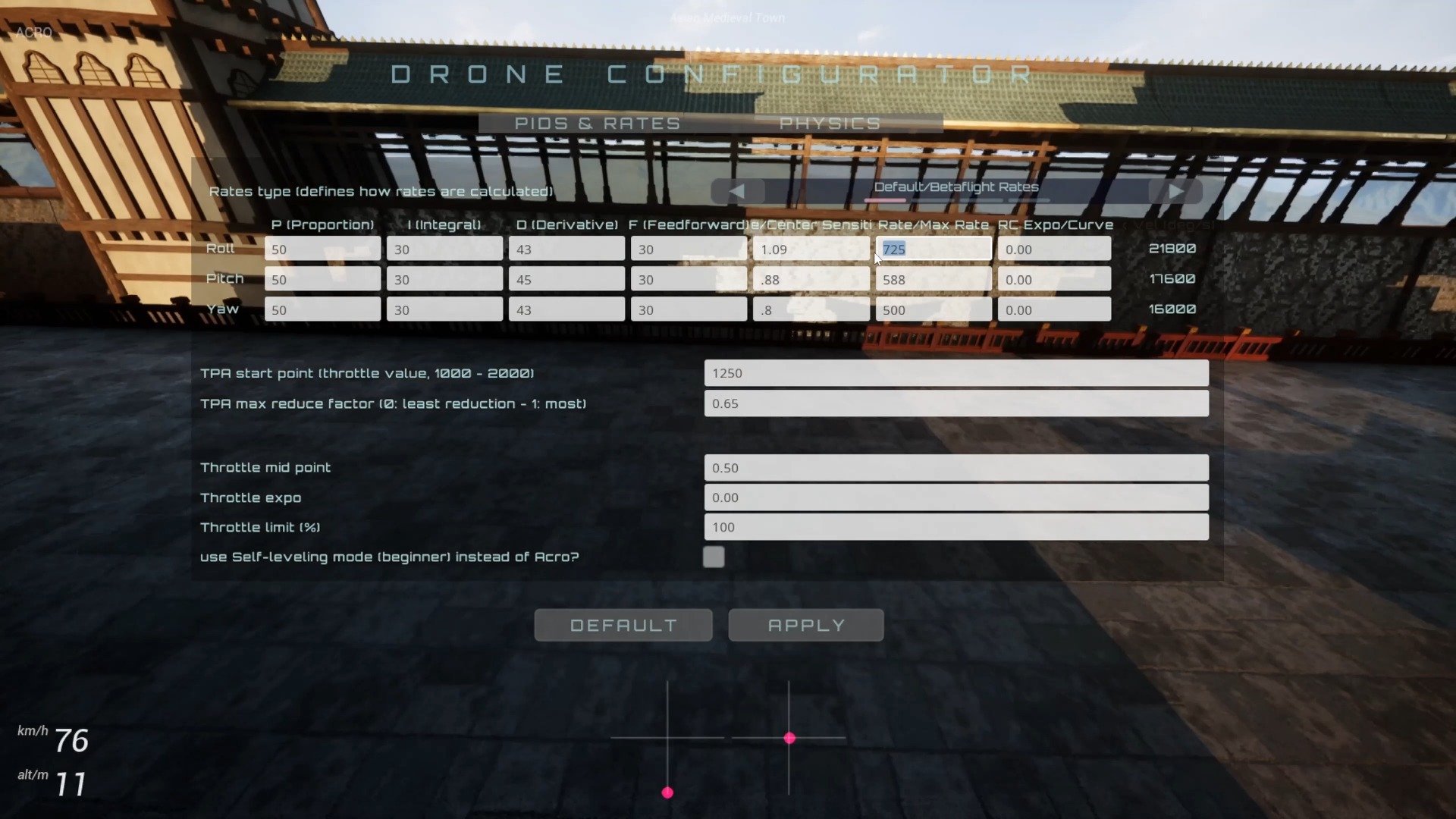
If the aircraft turns continuously as soon as it enters the scene, return to calibration and compare raw and calibrated values. Possible causes include center drift, the wrong channel, incompletely recorded endpoints, or accidentally enabled DJI mode. Identify the specific axis and recalibrate; this is more reliable than compensating for incorrect input with flight parameters.
Operation steps
- Open the calibration page
Enter the calibration tool in FPVSIM radio / gamepad settings. First move the sticks to confirm that raw input at the bottom responds.
- Move to the four endpoints as prompted
Complete throttle fully up, roll fully right, pitch fully up, and yaw fully right in order so the wizard records directions and ranges.
- Check the calibrated channels
Move each stick slowly and confirm that the calibrated input above matches the movement, then test-fly in a simple map.
- Assign the gamepad’s two sticks
For an ordinary gamepad, decide which directions on its two joysticks correspond to throttle, yaw, pitch, and roll.
- Set the DJI compatibility option correctly
For a DJI controller, enable the special input option shown in the video. Keep it off for every non-DJI device.
FAQ
Does FPVSIM support ordinary gamepads?
Yes. You can use the two sticks and assign throttle, yaw, pitch, and roll yourself, but must check directions and centering after mapping.
Why are there separate raw-input and calibrated-input values?
Raw input shows channels reported directly by the device. Calibrated input shows FPVSIM’s result after converting direction, center, and range. Comparing them helps distinguish device-recognition problems from calibration problems.
Can I enable the DJI option for a non-DJI controller?
No. The video explicitly warns that enabling this option for non-DJI devices causes incorrect data readings. It is only for the DJI firmware compatibility handling described in the video.
What if the aircraft keeps turning after calibration?
Return to calibration and check center drift, channel direction, endpoint range, and device-specific options. Identify the affected axis and recalibrate; do not first try to hide incorrect inputs with flight parameters.
Can I fly at high speed immediately after finishing the wizard?
Start with small inputs in a familiar, open map. Confirm that all four axes respond continuously, have the correct directions, and center steadily, then increase the movements gradually.
Full timeline transcript
Transcripts are arranged according to video time, making it easy to quickly locate the explanation content. Transcript language: Simplified Chinese.
Hello everyone, this is QuadRank. Today we will look at calibrating a controller in the new FPVSIM simulator. After downloading the new simulator, open the radio / gamepad page and you will see a Calibrate Gamepad option here. Click it to open calibration. There are instructions at the top, calibrated input here, and raw input below. By default, we can detect 8 input axes.
Click Start calibration to begin. First move throttle fully up, then roll fully right, then pitch fully up, and finally yaw fully right. Those few simple steps complete calibration. Now move the sticks and check whether the calibrated input matches your stick input. Mine all match here.
Then we can start enjoying the simulator. For example, enter any map here and go flying. There are two common questions. First, are gamepads supported? Yes, gamepads are supported. With a gamepad, choose the two joysticks—the two sticks.
You can decide which directions on the two sticks are throttle, yaw, pitch, and roll. Another question is whether DJI controllers are supported. They are, but you need to enable the DJI controller option here. There is a bug in the DJI controller firmware that needs special handling for input to be read correctly, so you must enable this option.
But if your controller is not from DJI, make sure this option is off; otherwise the incoming data will also be incorrect. Mine is not a DJI controller, so I turn it off. OK, that is all for this video. Thank you for watching. Goodbye.