Build a Reliable 5 GHz Wi-Fi Network for FPVSIM Timer
Choose and configure a dependable 5 GHz Wi-Fi setup for low-interference FPVSIM Timer events.

Configure a dedicated router for the first time to give FPVSIM Timer a stable race-day network.
This walkthrough introduces the Timer app, then connects an FPVSIM timer to a custom router for the first time. It also points out where the recorded app stored racers, groups, workspaces, race controls, and history.
The video shows an earlier release. Supported platforms, sign-in rules, licensing intervals, and menu labels can change, so use the current download and on-screen guidance rather than treating the recorded account behavior as a present-day promise.
Follow the platform's normal installation and security process. Sign in or activate only when the current release asks you to do so.
The router's Wi-Fi and the timer's own hotspot are not the same. First join the timer hotspot so the app can configure the hardware directly.
Use the timer-hotspot connection action and confirm that live timer information appears before changing any network setting.
Enter the router's SSID and password exactly, save, and reboot the timer. Never copy credentials shown in a tutorial video.
Put the app device on the router network and connect to the timer using the address or discovery method shown by the current app.
Run the metronome or a short race, confirm lap events and sound, submit the test if appropriate, and review its history or lap-time trend.
The presenter describes an offline sign-in interval and cloud workspace behavior from that release. Check the current app and official release notes for today's authentication, offline use, and cloud requirements.
This transcript was cleaned from the public English captions. References to platform support, authentication, and cloud workspaces describe the recorded release.
About 00:00
Download the Timer app from the official release page and choose the installer for your operating system. At the time of recording, builds were shown for macOS, Windows, Android, and Linux. A Mac may report that the developer cannot be identified; use the normal system security approval only if you trust the official download.
About 01:30
Open the app and sign in while Internet access is available. This version described a limited period of offline use after sign-in. The main screen contains race controls, recent history, and the controls for starting, finishing, and submitting a race.
About 03:00
The Racers and Groups views organize participants, while Workspaces save an event setup. In this recorded version, saving or loading a cloud workspace required Internet access. Those screens and requirements may be different in a current build.
About 04:30
Power the router and the timer. Be careful to distinguish the router Wi-Fi from the timer hotspot. For first-time setup, join the timer hotspot and connect directly from the app before entering the custom router details.
About 06:00
Enter the router SSID and password, save the settings, and reboot the timer. Then move the app device onto the router and connect to the timer there. Use the metronome or a short test race to confirm that the connection and lap announcements work.
About 07:40
After the race, submit it and open the history. The lap-time trend helps show whether practice is becoming faster or more consistent. In the example, improvement eventually leveled off, which is still useful feedback for training.
The direct hotspot gives the app a local path to write the router credentials into the timer. After the reboot, normal communication can move to the router network.
Recheck the SSID and password, confirm that a compatible 2.4 GHz network is enabled, and move the hardware closer during setup. Return to the timer hotspot to correct the settings.
Do not assume so. The recording documents one release. Use current in-app messaging and official release information for authentication and offline-use rules.
Local timing and cloud services are separate concerns. The recorded version used Internet for sign-in and cloud workspaces; verify the current release and test the complete event workflow while offline if that is your plan.
Keep learning
Choose and configure a dependable 5 GHz Wi-Fi setup for low-interference FPVSIM Timer events.
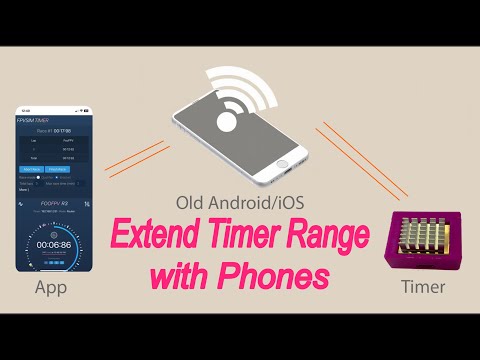
Repurpose an old phone to extend FPVSIM Timer network coverage when your race venue needs more range.
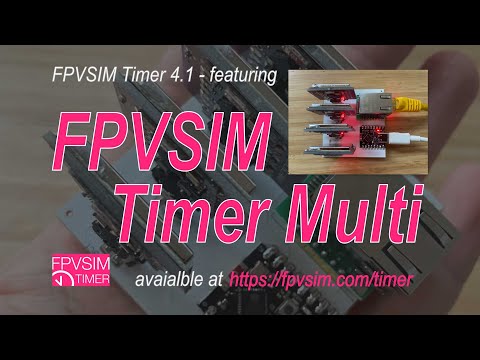
See how the FPVSIM Timer Multi Events Edition supports larger race operations and repeated event setup.